


If you have a DWG file but need a DXF version, you do not necessarily need to recreate the drawing from scratch. A DWG file can be converted into DXF using CAD software or an online file converter.
The right conversion method depends on what you have available and how much control you need over the output. For a quick conversion, an online DWG to DXF converter can be more convenient. If you need detailed control over layers, objects, versions, or export settings, dedicated CAD software may be preferable.
In this guide, you will learn how to convert DWG to DXF, how DWG and DXF differ, how to check the converted file, and how to change a DXF file back to DWG when necessary.
Quick Answer: How to Convert DWG to DXF
The easiest way to convert DWG to DXF is to use an online converter:
- Open a reliable DWG to DXF converter.
- Upload your DWG file.
- Select DXF as the output format if required.
- Start the conversion.
- Download the converted DXF file.
- Open the DXF in your CAD software and check the drawing.
For users who want a straightforward online option, you can use FileXTool’s DWG to DXF converter:
Convert DWG to DXF with FileXTool
The exact conversion process and available options can vary between tools, so check the converter’s current interface and supported file limits before uploading an important project.
What Is a DWG File?
DWG is a CAD drawing file format commonly associated with Autodesk applications such as AutoCAD. Autodesk describes DWG as the native data format used by AutoCAD-based products. DWG files can contain 2D and 3D geometry along with information such as layers, annotations, colors, and other design data.
DWG is widely used in professional CAD workflows because it can store detailed design information in a compact format.
A DWG file may contain:
- 2D drawings
- 3D geometry
- Layers
- Dimensions
- Annotations
- Blocks
- Design metadata
- Other CAD-related information
Because DWG is commonly used for creating and editing CAD drawings, it is often the working format during a design project.
What Is a DXF File?
DXF, or Drawing Exchange Format, is a CAD file format designed to represent drawing information for use between applications.
Autodesk describes DXF as a tagged representation of information contained in an AutoCAD drawing file. DXF files can be used to transfer drawing data between different applications.
DXF is particularly useful when you need to exchange CAD drawing data between different software environments.
DXF files can be represented in ASCII or binary formats. ASCII DXF files are text-based, while binary DXF files use a binary representation.
DWG vs DXF: What Is the Difference?
DWG and DXF are both important CAD formats, but they are commonly used for somewhat different purposes.
| Feature | DWG | DXF |
|---|---|---|
| Common use | CAD design and editing | CAD data exchange |
| Associated with | AutoCAD and other CAD tools | Autodesk and many CAD applications |
| 2D drawings | Yes | Yes |
| 3D data | Yes | Can represent drawing data, depending on workflow |
| Data exchange | Good | Particularly useful for interoperability |
| File representation | Commonly binary | ASCII or binary |
| Best suited for | Working design files | Sharing or transferring drawing data |
Which one should you use?
Use DWG when you are primarily working on a CAD project and your software supports it well.
Use DXF when you need to exchange drawing information between different applications or workflows that require DXF.
The right choice ultimately depends on the software and workflow you are using.
How to Convert DWG to DXF Online
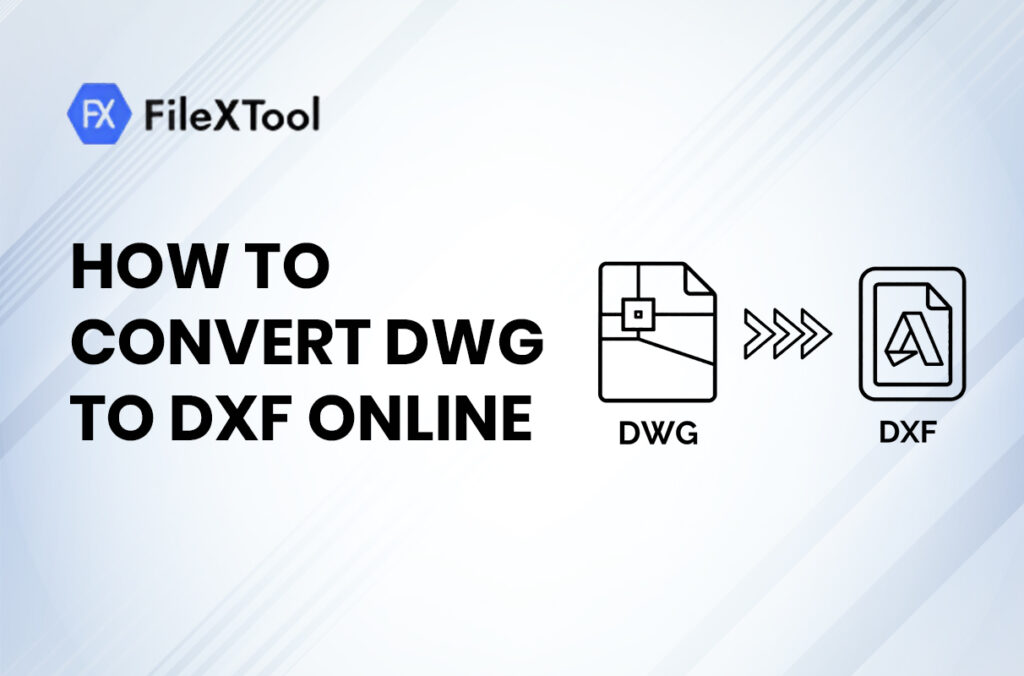
If you do not want to open a desktop CAD application just to change the file format, an online converter can be a convenient option.
Step 1: Open a DWG to DXF converter
Start by opening an online tool that supports DWG-to-DXF conversion.
For example:
FileXTool DWG to DXF Converter
Before uploading a project file, check the tool’s current supported file size, formats, and processing conditions.
Step 2: Upload your DWG file
Select the DWG file you want to convert from your computer.
Make sure the original file has a .dwg extension and that you have selected the correct drawing.
For an important project, it is a good idea to keep a copy of the original DWG file before starting the conversion.
Step 3: Select DXF as the output format
Choose DXF as the target format if the converter requires you to select an output format.
The converter will then process the DWG file and create a DXF version.
Step 4: Start the conversion
Click the conversion button and wait for the process to finish.
The amount of time required can depend on factors such as file size, drawing complexity, and the converter being used.
Step 5: Download the DXF file
Once the conversion is complete, download the resulting DXF file to your computer.
Rename the file if necessary so you can easily identify the converted version.
Step 6: Open and check the converted drawing
Do not immediately assume that a converted file is ready for production.
Open the DXF in your intended CAD software and check important elements such as:
- Drawing scale
- Dimensions
- Layers
- Lines and curves
- Text
- Blocks
- Hatches
- Coordinates
- Units
- Overall geometry
This final check is especially important when the DXF will be used for manufacturing, cutting, engineering, or another precision-dependent workflow.
How to Change DWG to DXF Using CAD Software
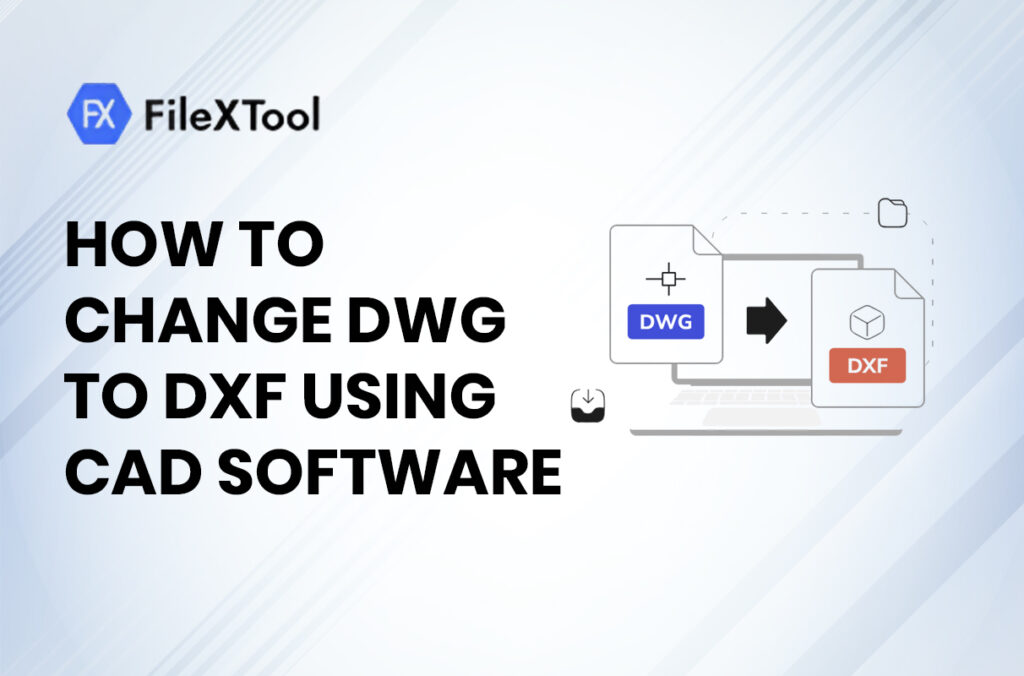
If you already have compatible CAD software, you can also export a DWG drawing as DXF.
In AutoCAD, for example, a drawing can be exported as a DXF file. Autodesk also documents options for controlling aspects of DXF output, including precision and whether the DXF is saved in ASCII or binary form.
A typical workflow is:
- Open the DWG file.
- Review the drawing.
- Choose the appropriate export or save-as option.
- Select DXF as the file type.
- Choose the required DXF version or settings.
- Save/export the file.
- Open the DXF and verify the result.
The exact menu names can differ depending on the CAD application and version.
Online converter or CAD software?
An online converter is useful when you need a quick format conversion and do not need extensive export controls.
Dedicated CAD software may be better when:
- The drawing is complex.
- You need precise export settings.
- You need to select particular objects.
- You need to control DXF version or output settings.
- You need to inspect the drawing before exporting.
Why Convert DWG to DXF?
There are several reasons someone might need to change DWG to DXF.
1. Better data exchange
DXF is specifically intended for exchanging drawing data between applications.
If another CAD or design application requests a DXF file, converting your DWG can make the drawing easier to transfer into that workflow.
2. Working with different CAD applications
A project may move between different programs during its lifecycle. A DXF file can be useful when the receiving application expects or works better with the format.
3. Manufacturing workflows
Some manufacturing and fabrication workflows request DXF files for specific types of 2D design data.
However, always check the requirements of the machine, CAM software, or manufacturer before sending the file.
4. Sharing drawing data
If someone specifically asks you for a DXF instead of a DWG, converting the existing drawing can be faster than recreating it.
What to Check After Converting DWG to DXF
A successful conversion should not be judged only by whether the file downloads.
Open the DXF and inspect the drawing carefully.
Check the geometry
Look for:
- Missing lines
- Broken curves
- Incorrect shapes
- Missing objects
- Unexpected geometry
Check layers
Make sure the important layers are present and appear as expected.
Check text and dimensions
Fonts, annotations, dimensions, and text formatting can behave differently depending on the software used to open the converted file.
Check units and scale
Incorrect units can create serious problems in engineering and manufacturing workflows.
Confirm that the converted drawing has the expected measurement system and scale.
Check the final file with the receiving software
If the DXF is being sent to another person or company, ideally test it in the same type of application or workflow they will use.
This can help catch compatibility problems before the file is delivered.
Common Problems When Converting DWG to DXF
Missing objects
Some elements may not transfer exactly as expected between formats or applications.
What to do: Compare the converted DXF with the original DWG and inspect important areas of the drawing.
Text looks different
Fonts or text-related settings can affect how annotations appear.
What to do: Check the required fonts and verify text after conversion.
Dimensions are incorrect
Dimension styles or drawing settings may behave differently in another application.
What to do: Verify important dimensions against the original DWG.
File does not open correctly
A DXF created for one software version may not behave identically in another environment.
What to do: Check the DXF version and the compatibility requirements of the software receiving the file.
Large file takes longer to process
Complex CAD drawings can take longer to upload, process, or download.
What to do: Keep the original file safely stored and allow enough time for processing.
How to Change DXF to DWG
Sometimes the process needs to go in the opposite direction.
If you are wondering how to change DXF to DWG, compatible CAD software can open or import the DXF and save the resulting drawing as DWG.
Autodesk documents a workflow in which a DXF file can be opened and then saved in DWG format.
The general process is:
- Open the DXF file in compatible CAD software.
- Check the drawing.
- Select the Save As or equivalent option.
- Choose DWG as the output format.
- Select the appropriate DWG version if available.
- Save the file.
- Reopen the DWG and verify the drawing.
Remember that changing the extension from .dxf to .dwg manually does not convert the file. The file must actually be converted or saved into the other format.
DWG to DXF vs DXF to DWG
| Conversion | Typical Reason | General Workflow |
|---|---|---|
| DWG → DXF | Share drawing data or use a DXF-based workflow | Export or convert DWG to DXF |
| DXF → DWG | Work with the drawing in a DWG-based workflow | Open/import DXF and save as DWG |
When Should You Use DWG or DXF?
A simple rule can help:
Choose DWG when your primary goal is working with the drawing in a CAD environment that uses DWG.
Choose DXF when your primary goal is exchanging drawing data with another application or workflow that requires DXF.
There is no universal rule that one format is always better. The correct format depends on the software, project requirements, and downstream workflow.
A Simple Workflow for Safe CAD Conversion
If the drawing is important, use this basic checklist:
Before conversion:
- Keep a backup of the original DWG.
- Confirm the required output format.
- Check the receiving application’s requirements.
- Identify important layers and dimensions.
During conversion:
- Use the correct source file.
- Select the correct output format.
- Choose appropriate version/settings when available.
After conversion:
- Open the DXF.
- Check geometry.
- Check layers.
- Check text.
- Check dimensions.
- Verify units and scale.
- Compare important areas with the original drawing.
This extra verification can prevent small conversion issues from becoming larger problems later.
Frequently Asked Questions
Q1: Can I convert DWG to DXF online?
Yes. You can use an online DWG-to-DXF converter to upload a DWG file and generate a DXF version. Online conversion can be convenient when you need a quick format change without using desktop CAD software. For important files, always review the converted drawing before using or sharing it.
Q2: How do I change DWG to DXF?
You can change DWG to DXF either with compatible CAD software or an online converter. With an online tool, upload the DWG, choose DXF as the output format if required, start the conversion, and download the resulting file.
Q3: What is the difference between DWG and DXF?
DWG is a native drawing format used by AutoCAD-based products, while DXF is a drawing interchange format designed to transfer CAD drawing data between applications. Autodesk identifies DWG as the native format for AutoCAD-based products and DXF as a format for exchanging drawing information.
Q4: Can I convert DXF back to DWG?
Yes. Compatible CAD software can open or import a DXF and save the drawing as DWG. Autodesk documents saving a DXF file in DWG format as part of its DXF import/export workflow.
Q5: Does changing .dwg to .dxf manually convert the file?
No. Simply renaming the file extension does not convert its internal format. You need to use a proper conversion or export process to create a valid DXF file.
Q6: Is DXF better than DWG?
Neither format is universally better. DWG is commonly used as a working CAD format, while DXF is particularly useful for exchanging drawing data between applications. The best choice depends on the software and workflow involved.
Q7: Should I check the file after conversion?
Yes. Always inspect an important converted drawing. Check geometry, layers, dimensions, text, units, scale, and other elements that are important to your project.
Q8: Can I convert a large DWG file online?
That depends on the converter’s current file-size and processing limits. If an online tool does not support your file, desktop CAD software may be a better option.
Conclusion
Learning how to convert DWG to DXF does not have to be complicated. If you only need a quick format conversion, an online converter can provide a convenient workflow: upload the DWG, convert it to DXF, download the result, and verify the drawing.
For more advanced projects, dedicated CAD software can provide greater control over export settings and drawing compatibility.
If you want to try an online conversion, you can use:
FileXTool’s DWG to DXF Converter
The most important step is not just converting the file—it is checking the resulting DXF before using it in an important design, engineering, or manufacturing workflow.