


Images play an important role in websites, blogs, eCommerce stores, and social media content. Different image formats are used for different purposes, and two of the most common formats today are WEBP and JPG. While WEBP is known for better compression and smaller file sizes, JPG remains one of the most widely supported image formats across devices, browsers, and platforms.
Many users often need to convert WEBP images into JPG format for compatibility reasons. However, one common concern is image quality loss during conversion. In this guide, you will learn how to convert WEBP to JPG without losing quality, the best conversion methods, useful tips, and why using a trusted platform like Filextool can make the process easier and faster.
Understanding WEBP and JPG Formats
Before understanding how to convert WEBP to JPG, it is important to learn about both image formats and how they are used in websites, blogs, social media, graphic design, and online marketing. Knowing the difference between WEBP and JPG will help you choose the right format for better performance, compatibility, and image quality.
Many users search for how to convert WEBP to JPG because they want images that are easier to use across different platforms while maintaining good visual quality. Both formats have their own advantages, and understanding them properly can help you make smarter decisions for website optimization and image management.
What is WEBP?
WEBP is a modern image format developed by Google to create smaller image file sizes without significantly reducing image quality. The main goal of WEBP is to improve website speed and overall web performance.
Today, many websites and web developers prefer WEBP images because they help pages load faster, especially on mobile devices. Faster-loading websites can improve user experience and even help with SEO rankings.
WEBP uses advanced compression technology that reduces image size more effectively than traditional formats like JPG and PNG. This means users can upload high-quality images while consuming less storage space and bandwidth.
When learning how to convert WEBP to JPG, it is important to understand that WEBP was mainly created for web optimization, while JPG focuses more on compatibility and universal usage.
Key Features of WEBP
Smaller File Sizes
One of the biggest advantages of WEBP is its smaller file size. WEBP images can often be 25% to 35% smaller than JPG images while maintaining similar visual quality.
Smaller images help:
- Improve website loading speed
- Reduce server bandwidth usage
- Enhance mobile browsing performance
- Improve SEO and Core Web Vitals
This is one reason why many modern websites use WEBP images.
Faster Website Performance
WEBP images load faster compared to many traditional formats. Faster loading speed improves user experience and reduces bounce rates.
Search engines like Google also consider page speed an important ranking factor, which makes WEBP useful for SEO-focused websites.
Better Compression Technology
WEBP supports both lossy and lossless compression.
Lossy Compression
Reduces file size while maintaining acceptable visual quality.
Lossless Compression
Preserve original image data without quality loss.
This flexibility makes WEBP a powerful format for modern web development.
Supports Transparency
Like PNG files, WEBP also supports transparent backgrounds. This makes WEBP useful for:
- Logos
- Icons
- Website graphics
- Product images
Ideal for Modern Web Usage
WEBP is commonly used in:
- Blogs
- eCommerce websites
- Portfolio websites
- News portals
- Landing pages
However, despite its advantages, many users still search for how to convert WEBP to JPG because some platforms, apps, and editing tools have limited WEBP support.
If you want to learn more about image optimization and website-friendly formats, you can also check. Best Image Formats for Web for detailed guidance.
What is JPG?
JPG or JPEG stands for Joint Photographic Experts Group, which is the organization that created this image format. JPG is one of the oldest and most widely used image formats in the world.
Even today, JPG remains extremely popular because it works on almost every:
- Browser
- Smartphone
- Computer
- Editing software
- Social media platform
This universal compatibility is one of the main reasons people search for how to convert WEBP to JPG for easier sharing and editing.
JPG uses lossy compression, which means some image data is compressed to reduce file size. However, when saved using high-quality settings, JPG images still look visually appealing while keeping manageable file sizes.
Key Features of JPG
Universal Compatibility
JPG is supported almost everywhere. Unlike WEBP, JPG files can easily open on:
- Windows
- Mac
- Android
- iPhone
- Web browsers
- Design software
This makes JPG one of the most convenient image formats for daily use.
Easy Sharing and Uploading
JPG images are commonly accepted on:
- Social media platforms
- Blogging websites
- Online forms
- Email attachments
- Marketplace listings
Because of this, many users prefer learning how to convert WEBP to JPG for better upload compatibility.
Works on All Devices
JPG images can be viewed without installing special software or plugins. Almost every device supports JPG natively.
Ideal for Photography
JPG is highly suitable for:
- Digital photography
- Social media images
- Website banners
- Product photography
- Blog featured images
Its balance between quality and file size makes it perfect for general image usage.
Good Balance Between Size and Quality
JPG files provide decent image quality while keeping file sizes relatively small. This makes them practical for websites, sharing, and online uploads.
However, compared to WEBP, JPG files may sometimes be larger in size for the same image quality level.
Why Convert WEBP to JPG?
Many users search for how to convert WEBP to JPG because JPG files are more flexible for daily use.
Better Device Compatibility
Some applications and older devices do not fully support WEBP images. JPG works almost everywhere without compatibility problems.
Easier Editing
Photo editing software often handles JPG files more smoothly than WEBP images.
Social Media Support
Many social media platforms and websites still prefer JPG uploads.
Convenient File Sharing
JPG files are easy to open, print, attach, and share across multiple platforms.
If you often work with image files, you may also find How to Convert JPG to PNG File useful for understanding different image conversion methods.
Can you convert WEBP to JPG without losing quality?
Yes, you can convert WEBP to JPG without noticeable quality loss if you use the correct conversion settings and tools.
However, since JPG uses lossy compression, some data compression may happen during conversion. The goal is to preserve maximum visual quality while maintaining manageable file sizes.
Important Factors That Affect Quality
Compression Settings
Using low compression and high-quality export settings helps preserve details.
Original Resolution
Keeping the original image dimensions prevents blurriness and pixel loss.
Conversion Tool Quality
A trusted platform like Filextool helps maintain image clarity during conversion.
Best Methods how to Convert WEBP to JPG
There are several effective ways to learn how to convert WEBP to JPG while preserving image quality.
Use an Online WEBP to JPG converter.
Online converters are the easiest and fastest solution for most users.
Steps to how to Convert WEBP to JPG
- Open an online converter
- Upload the WEBP image
- Select JPG as the output format
- Choose high-quality settings
- Download the converted image
Using Filextool Image Converter makes the process simple and beginner-friendly.
Use photo editing software.
Professional editing tools can also convert WEBP images into JPG format.
Popular Software
- Adobe Photoshop
- GIMP
- Paint.NET
Conversion Process
- Open the WEBP image
- Click Save As
- Select JPG format
- Export using maximum quality settings
Use Browser-Based Methods
You can open WEBP images in a browser and save or screenshot them for quick JPG conversion.
Tips to Preserve Image Quality During Conversion
If you want to know how to convert WEBP to JPG professionally, follow these quality preservation tips.
Use High-Quality Export Settings
Always choose:
- Maximum JPG quality
- Low compression
- Original image resolution
Avoid Multiple Conversions
Repeated format conversions can reduce image quality over time.
Maintain Original Dimensions
Do not unnecessarily resize the image during conversion.
Optimize Images Properly
After converting WEBP to JPG, you can optimize and manage images using smart online tools like Image to Base64 Tool for web development and image embedding purposes.
Benefits of Using Online WEBP to JPG Converters
Online converters offer convenience and speed for users who regularly work with image files.
No Installation Required
You can convert files directly from your browser.
Fast Processing
Most tools convert WEBP to JPG within seconds.
Mobile-Friendly Access
Users can convert images from mobile phones, tablets, and desktops.
Beginner-Friendly Interface
Platforms like Filextool provide a simple and clean user experience.
Free File Conversion
Most basic conversion features are available free of cost.
Best Features to Look for in a WEBP to JPG Converter
Choosing the right converter is important for quality and security.
High-Quality Output
The converter should preserve image sharpness and colors.
Secure File Handling
Your uploaded files should remain private and protected.
Fast Conversion Speed
A good converter should process files quickly without delays.
Batch Conversion Support
Multiple file conversion saves time.
Additional Editing Features
Some tools also provide watermarking and image customization options. For example, if you want to protect your converted images or PDFs, you can use the Add Watermark Tool for branding and copyright protection.
JPG vs. PNG vs. WEBP: Which Format is Better?
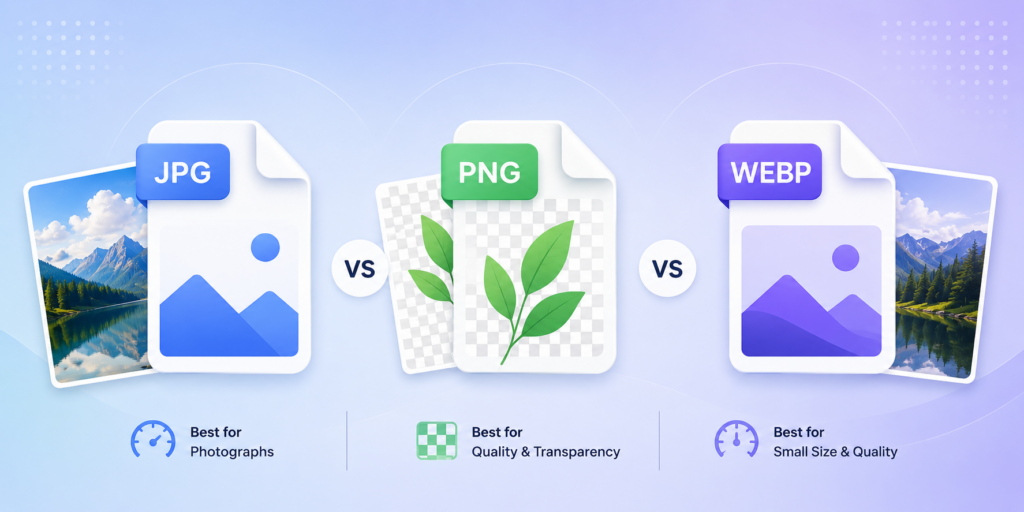
Users often compare image formats before deciding which one to use.
JPG
- Best for photography
- Smaller file sizes
- Universal compatibility
PNG
- Better for transparency
- High-quality graphics
- Larger file sizes
WEBP
- Excellent compression
- Faster website loading
- Modern web optimization
If you want a detailed comparison, check out JPG vs PNG: Which Format is Better for a complete breakdown.
Why Choose Filextool for Image Conversion?
When searching for how to convert WEBP to JPG, using a trusted platform matters.
Fast and Reliable Conversion
Filextool offers smooth and efficient image conversion tools.
Multiple File Conversion Options
Users can convert:
- Images
- Documents
- PDFs
- eBooks
- Audio and video files
User-Friendly Interface
The platform is easy to use for beginners and professionals.
Secure and Free
Filextool provides secure file handling with convenient online access.
Conclusion
Understanding how to convert WEBP to JPG is important for users who need better compatibility, easier sharing, and improved editing support. By using the right conversion settings and trusted tools, you can preserve image quality while converting files efficiently.
Whether you are a blogger, web designer, student, or business owner, platforms like Filextool make image conversion simple, secure, and fast. Following the tips above will help you convert WEBP images into high-quality JPG files without noticeable quality loss while also improving your workflow and website optimization.
FAQs
Q1. How to convert WEBP to JPG without losing quality?
You can convert WEBP to JPG without noticeable quality loss by using a high-quality converter, maintaining the original resolution, and selecting maximum JPG quality settings during export. Trusted tools like Filextool help preserve image clarity during conversion.
Q2. Why do people convert WEBP to JPG?
Many users convert WEBP to JPG because JPG files are more widely supported across devices, software, social media platforms, and editing tools. JPG images are also easier to share and upload online.
Q3. Is JPG better than WEBP?
Both formats have different advantages. WEBP offers better compression and faster website loading, while JPG provides universal compatibility and easier editing support. The best format depends on your specific use case.
Q4. Does converting WEBP to JPG reduce image quality?
Since JPG uses lossy compression, some quality reduction may occur. However, if you use proper conversion settings and a reliable converter, the difference is usually not noticeable.
Q5. Can I convert WEBP to JPG on mobile devices?
Yes, you can easily convert WEBP to JPG on smartphones and tablets using browser-based online conversion tools without installing any software.