


CAD files are widely used in architecture, engineering, and technical design for creating detailed drawings. However, sharing these files is not always easy, which is why many users look for how to convert DWG to PDF for easier viewing and accessibility.
A PDF version makes technical drawings simpler to share, review, and print without requiring CAD software. Understanding how to convert DWG to PDF can help preserve layout and improve compatibility when sending files to clients or teams.
In this guide, you will learn how to convert DWG to PDF step by step using a simple method. This process helps you convert DWG to PDF efficiently while keeping your drawings clear and professional.
Steps to Convert DWG to PDF (Complete Guide)
If you want to understand how to convert DWG to PDF, following a simple step-by-step process makes the task easy. With the right method, you can convert technical drawings into a format that is easier to share, print, and review.
This process helps you convert DWG to PDF while maintaining layout and improving file accessibility. It is a practical method for professionals who need a reliable dwg to pdf workflow.
Step 1: Open the FileXTool Website
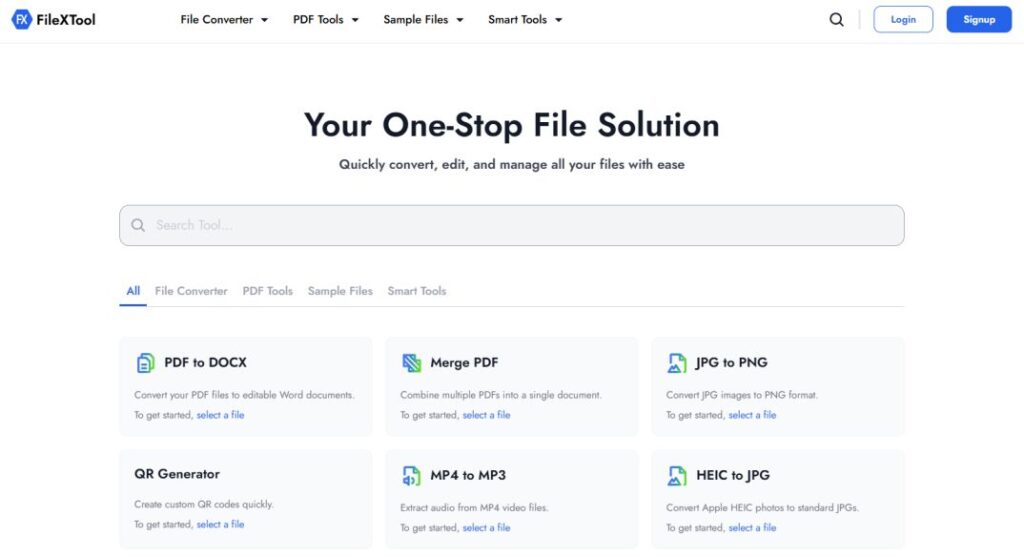
Open the FileXTool website in your browser to begin the conversion process. This is the first step in learning how to convert DWG to PDF without using complex desktop software.
Step 2: Go to the File Converter and Select CAD File Converter
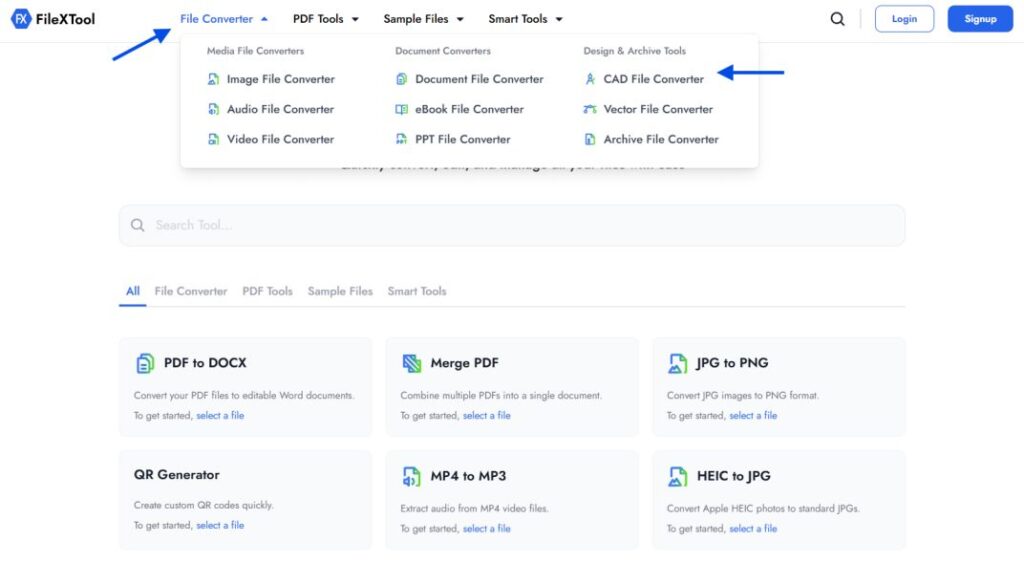
Navigate to the File Converter section and choose the CAD File Converter. This is where you can begin the process to convert DWG to PDF using the correct tool.
Step 3: Choose DWG in From Format and PDF in To Format
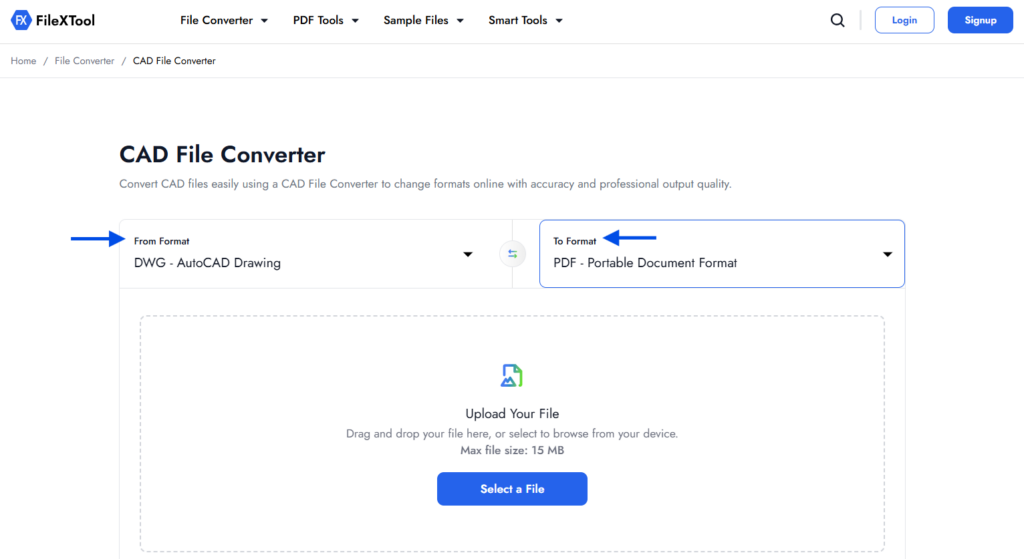
Select DWG as the input format and PDF as the output format. This step defines the conversion settings and ensures the file is processed correctly.
Step 4: Upload Your DWG File by Clicking on Select a File
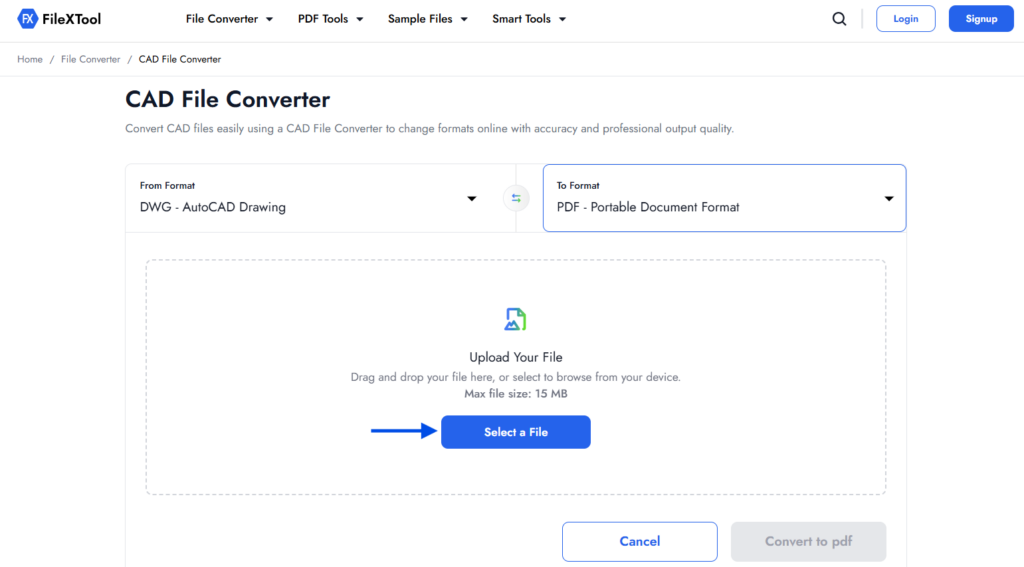
Upload your drawing file from your device. Make sure the file is complete and properly saved before starting the conversion.
Step 5: Click on Convert to PDF and Download Your File
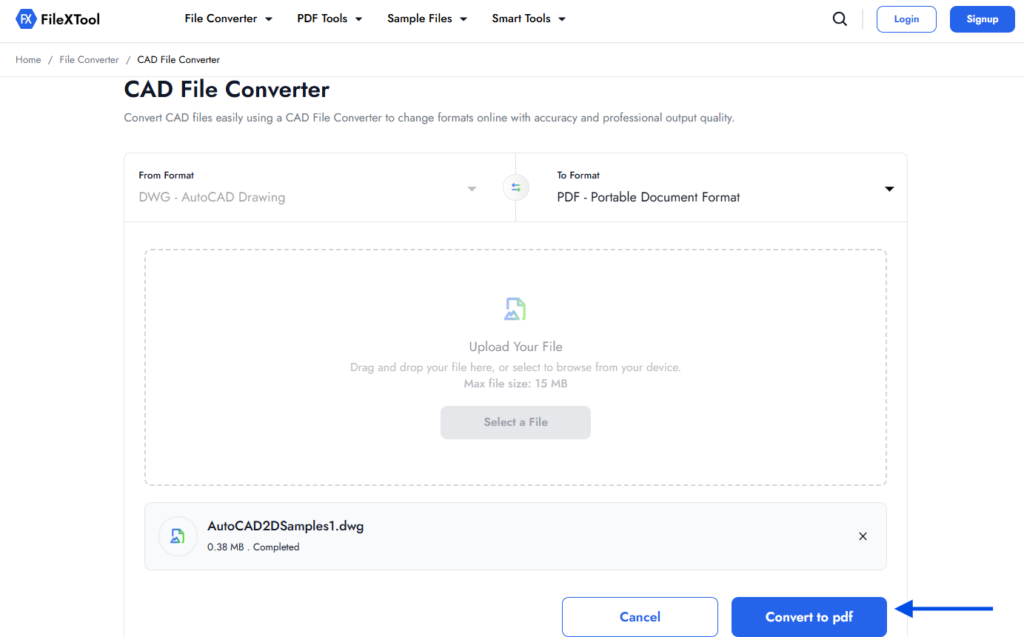
Click the convert button to process the file. Once complete, download your PDF and review the output to confirm the drawing layout appears correctly.
What Is a DWG File?
A DWG file is a format used for storing technical drawings created in CAD software. It commonly contains design elements such as dimensions, layouts, annotations, and engineering details used in architecture, construction, and drafting.
Understanding the DWG format helps explain why many professionals look for how to convert DWG to PDF when they need easier sharing and broader file compatibility. It also helps when comparing dwg vs pdf for different use cases.
Where DWG Files Are Used
DWG files are widely used in engineering, architectural planning, and technical drafting. They are preferred when drawings need precision and editable design data.
What DWG Files Store
A DWG file can store detailed drawing information, including layers, measurements, and structured design elements. If you want to understand more about how different file types work, resources like Best Sample Files of Different Formats can also provide useful context.
When PDF Becomes More Practical
While DWG is ideal for editing, PDF is often better for sharing, printing, and reviewing drawings. This is one of the main reasons users convert DWG to PDF for client communication and documentation.
What Is a PDF File and Why Is It Used for Technical Drawings?
A PDF file is a widely used format for sharing documents while preserving layout and visual structure. In technical workflows, this is one reason many users look for how to convert DWG to PDF when drawings need to be reviewed outside CAD software.
PDF format is often preferred because it makes drawings easier to open, print, and share across different devices. This also explains why convert DWG to PDF is a common requirement in engineering and design documentation.
Easier Sharing and Review
PDF files can be opened by clients, teams, and stakeholders without requiring specialized CAD applications. This makes review and collaboration much simpler.
Better Printing Consistency
PDF helps preserve drawing layout when printed, which is important for technical plans, markups, and approvals.
Broader Compatibility Without CAD Software
Recipients can access drawings in PDF format more easily, which is one of the biggest practical reasons to convert DWG to PDF.
DWG vs PDF: Key Differences You Should Know
DWG and PDF both serve different purposes, which is why understanding dwg vs pdf is important when handling technical drawings. One format is mainly used for editing and design, while the other is preferred for sharing and documentation.
DWG files offer editable design control, while PDF files improve accessibility and consistency when drawings need to be reviewed by others.
Comparison Between DWG and PDF
| Feature | DWG | |
|---|---|---|
| Primary Use | CAD editing | Sharing and viewing |
| Editability | Fully editable | Limited |
| Software Requirement | CAD software needed | Opens widely |
| File Sharing | Less convenient | Easy to share |
| Printing | Technical setup may vary | Print-friendly |
| Best Use | Design workflow | Review and documentation |
Choosing between these formats depends on whether you need editing flexibility or broader accessibility. In many cases, users convert DWG to PDF when they want drawings to be easier to distribute and review.
Benefits of Converting DWG to PDF
Converting drawings into PDF format can improve usability, especially when files need to be shared, reviewed, or printed. This is one reason many professionals look for how to convert DWG to PDF as part of a smoother document workflow.
Key Benefits to Know
- Easier File Sharing
PDF files can be opened more easily than CAD files, making collaboration simpler.
- Better Print Compatibility
PDF format is often more reliable for printing technical drawings with consistent layout.
- Improved Accessibility
Recipients can review files without specialized CAD software.
- More Practical for Documentation
PDF works well for records, approvals, and project communication.
Common Mistakes to Avoid When Converting DWG Files
Even when the process is simple, small errors can affect the final output. If you are learning how to convert DWG to PDF, avoiding common mistakes can help preserve drawing accuracy and improve results.
Mistakes You Should Avoid
Using an Incomplete or Unsaved DWG File
Always confirm the drawing is properly saved before conversion.
Ignoring Layout or Scale Settings
Incorrect settings may affect how the drawing appears in PDF format.
Not Reviewing the Final PDF Output
Always check the converted file to ensure lines, dimensions, and annotations display correctly.
Using the Wrong Format Settings
Selecting incorrect conversion settings can affect the final structure of the PDF.
Final Thoughts
Understanding how to convert DWG to PDF can make technical drawings easier to share, review, and manage. It is a practical step for improving accessibility while keeping your files suitable for documentation and printing.
For users looking for a simple workflow, FileXTool can help streamline the conversion process and make it easier to convert DWG to PDF without unnecessary complexity. Using the right method also helps preserve layout and maintain drawing clarity.
Whether you are working with engineering plans, architectural drawings, or technical files, choosing the right format makes a difference. A structured DWG to PDF process can improve collaboration and make document handling more efficient.
FAQs
1. How do I convert a DWG file?
You can convert a DWG file by uploading it to a converter, selecting PDF as the output format, and downloading the converted file. If you want to understand how to convert DWG to PDF, tools like FileXTool make the process simple and help preserve drawing layout.
2. Can I convert DWG to PDF online?
Yes, you can convert DWG to PDF online using browser-based tools without installing CAD software. FileXTool is one option that helps convert DWG to PDF quickly, making drawings easier to share, review, and print across devices.
3. What is the difference between DWG and PDF?
When comparing dwg vs pdf, DWG is mainly used for editable design files, while PDF is preferred for sharing and documentation. Many users convert DWG to PDF when they need broader compatibility and easier access for clients or teams.
4. Will converting DWG to PDF affect drawing quality?
In most cases, converting DWG to PDF does not affect drawing quality if the correct layout, scale, and output settings are used. It is always a good idea to review the final PDF to confirm dimensions, annotations, and line details appear correctly.
5. Why do professionals convert DWG to PDF?
Professionals often convert DWG to PDF to simplify collaboration, improve document accessibility, and support approvals or printing. Learning how to convert DWG to PDF is useful when technical drawings need to be shared outside CAD software while keeping the structure intact.