


Tired of copying text from a PDF only to end up with broken formatting, missing spaces, or jumbled sentences? You’re not alone. Many users struggle when trying to convert PDF into text format, especially when the output loses its structure and readability.
This problem becomes even more frustrating when you’re working on something important—like extracting data from reports, editing research documents, or repurposing content for SEO. What should take a few minutes often turns into hours of fixing messy text.
The reason? PDFs are designed for viewing, not editing. So when you try converting PDF to txt format using basic methods like copy-paste, the results are often inaccurate and hard to use.
But here’s the good news: you don’t have to deal with this anymore.
In this guide, you’ll learn how to convert a PDF to a TXT file the right way, without losing formatting or wasting time. We’ll walk you through a simple, step-by-step process along with practical tips to ensure clean and readable output every time.
How to Convert PDF into Text Format
If you’re wondering how to convert PDF into text format quickly and without losing readability, the process is actually very simple when you use the right tool. Instead of struggling with copy-paste errors or broken formatting, you can follow a structured method to extract clean, editable text in just a few clicks.
Step 1: Open the FileXTool Website
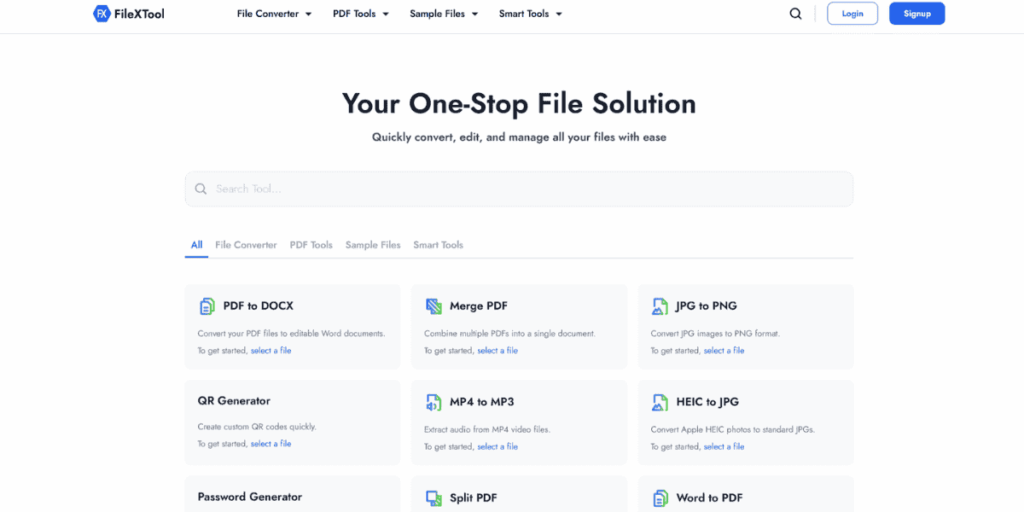
Start by visiting the FileXTool website in your browser. It works smoothly on Chrome, Firefox, Safari, and even mobile devices. The platform is designed for fast and secure file conversions, so you don’t need to install any software.
Step 2: Go to the Document File Converter
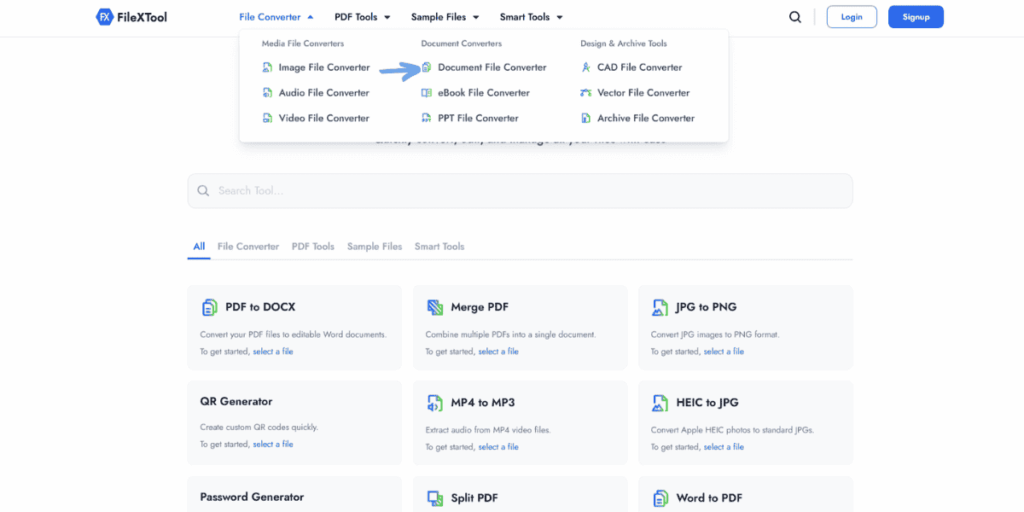
Once you’re on the site, navigate to the “File Converter” section and select “Document Converter.” This area provides multiple conversion options, including PDF to TXT, making it ideal for users who want a simple and efficient workflow.
Step 3: Select PDF in From Format and TXT in To Format
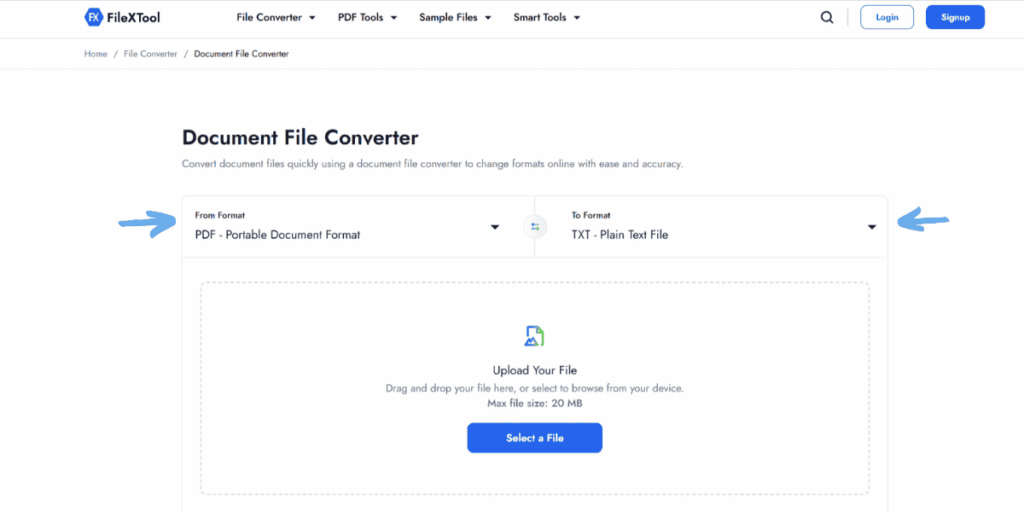
Choose “PDF” as your input format and “TXT” as your output format. This step ensures the tool understands exactly what type of conversion you need. If available, enable the “Preserve Formatting” option to maintain better text structure.
Step 4: Upload Your PDF File
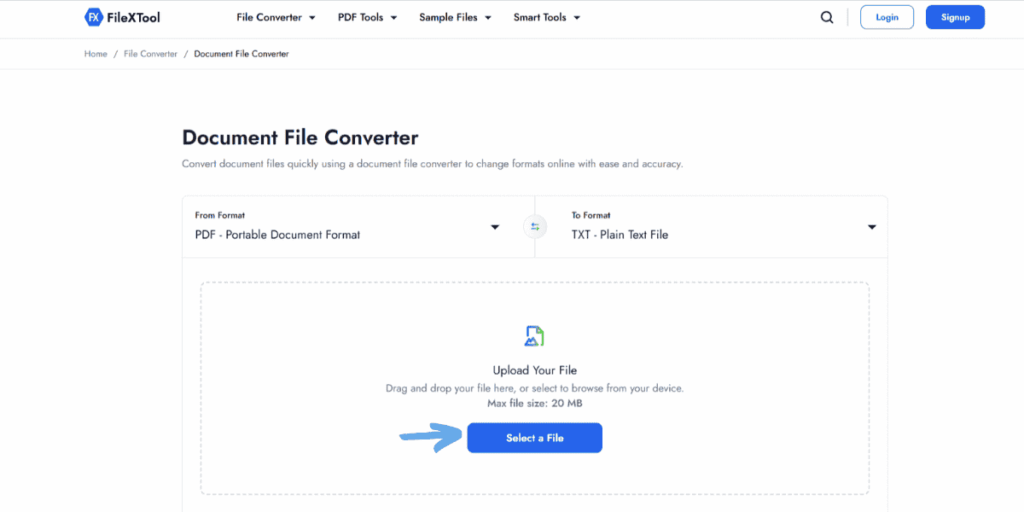
Upload your file by dragging and dropping it or selecting it manually. The tool supports large files, making it perfect for reports, ebooks, or long documents.
Step 5: Click on Convert
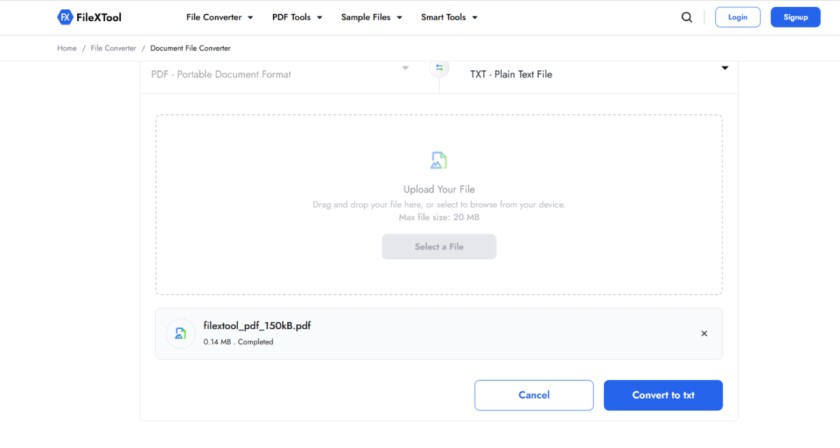
Click the “Convert” button to begin the process. Within seconds, the tool extracts the text from your PDF while maintaining readability and structure as much as possible.
Step 6: Download the Converted File
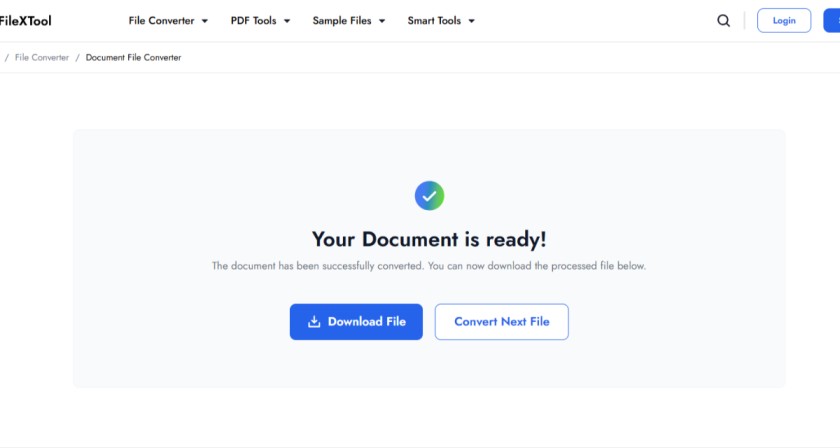
Once the conversion is complete, preview the output and download your TXT file instantly. You’ll now have clean, editable text ready to use.
Pro Tip: For best results when converting PDF to TXT format, always review the output file and choose tools that support smart text extraction instead of basic copy-paste methods.
What Does It Mean to Convert PDF into Text Format?
Converting a PDF into text format simply means extracting the written content from a PDF file and saving it as a plain text (.txt) file. Instead of keeping the original design, fonts, images, and layout, the focus shifts to capturing only the readable text in a clean and editable form.
PDF files are designed for consistency. They look the same on every device, which makes them great for sharing and printing. However, this fixed structure also makes them difficult to edit or reuse. That’s where text format becomes useful. When you convert a PDF into text, you remove all the visual layers and keep only the core information.
Think of it like this: a PDF is a finished, locked document, while a TXT file is a flexible draft that you can easily modify. Once the content is in text format, you can copy, edit, organize, or use it in different tools without dealing with formatting issues.
Why Do People Convert PDF to Text?
There are many practical situations where this conversion becomes helpful:
- Extracting content from reports or research papers
- Reusing text for blogs, articles, or presentations
- Analyzing large documents quickly
- Preparing content for editing or rewriting
Why Formatting Gets Lost in PDF to TXT Conversion
When you convert a PDF into a TXT file, formatting issues are very common—and there’s a simple reason behind it. PDFs are designed to preserve visual layout, not text structure. This means everything you see on the screen (fonts, spacing, columns, and alignment) is stored as fixed positions rather than flowing text.
On the other hand, TXT files only support plain text. They don’t understand styles, layouts, or design elements. So when you extract content, the converter has to “rebuild” the text from visual data, which often leads to formatting problems.
Common Causes of Formatting Loss
Several factors can affect how accurately text is extracted:
- Scanned PDFs (OCR issues):
If your PDF is scanned, the text isn’t actually text—it’s an image. OCR (Optical Character Recognition) tries to read it, but it can misinterpret letters, especially in low-quality scans. - Complex layouts:
PDFs with multiple columns, tables, or graphics can confuse converters. Instead of structured output, everything may merge into one continuous block of text. - Font and spacing differences:
Custom fonts and tight spacing can cause words to merge or break incorrectly during conversion. - Encoding mismatches:
If the wrong encoding (like ANSI instead of UTF-8) is used, special characters may appear as random symbols.
Common Mistakes That Make It Worse
Sometimes the issue isn’t the file—it’s the method used:
- Copy-pasting directly from PDF
- Using low-quality or outdated tools
- Ignoring encoding settings during export
These mistakes can result in broken sentences, missing spaces, or unreadable text..
Why Convert PDF to Text Format? (Benefits & Use Cases)
Converting a PDF into text format is not just about changing the file type—it’s about making your content easier to use, edit, and share. While PDFs are great for maintaining layout and design, they can be restrictive when you need quick access to the actual text. By converting them into a simple TXT file, you unlock flexibility and save time.
One of the biggest advantages is ease of editing. TXT files remove all complex formatting, allowing you to copy, modify, and reuse content without dealing with broken layouts or hidden elements. This is especially helpful when working with large documents where manual editing can be time-consuming.
Key Benefits:
- Easy Editing: Modify text quickly without formatting issues
- Lightweight Files: Smaller file size makes sharing faster
- Universal Access: Open files on any device without special software
- Faster Processing: Ideal for scripts, tools, and bulk operations
- Clean Text Extraction: Perfect for analyzing or repurposing content
Common Use Cases:
- Extracting content from research papers or reports
- Converting ebooks into editable notes
- Analyzing large documents for data or insights
- Preparing content for presentations or documentation
- Working with text in development or automation tools
In many cases, users also move between formats depending on their needs. For example, after working with extracted text, you may also need to convert PDF to Word for better formatting control and editing flexibility.
PDF vs TXT: What’s the Difference?
When deciding between PDF and TXT, it’s important to understand how each format works and where it fits best. Both serve different purposes, and choosing the right one depends on whether you need visual presentation or editable content.
A PDF (Portable Document Format) is designed to preserve the exact layout of a document. It keeps fonts, images, spacing, and design elements intact, making it ideal for sharing files that should look the same on every device. On the other hand, a TXT (plain text) file removes all formatting and keeps only the raw text, making it lightweight and easy to edit.
| Feature | TXT | |
|---|---|---|
| Format | Structured | Plain text |
| Editing | Limited | Easy |
| Size | Large | Very small |
| Purpose | Viewing & sharing | Editing & processing |
In simple terms, use PDF when presentation matters and TXT when flexibility is your priority.
Tips to Convert PDF to TXT Without Losing Formatting
When you convert PDF into text format, maintaining readability is the biggest challenge. Small mistakes can lead to broken sentences, missing spaces, or unreadable text. The good news is that with the right approach, you can convert a pdf file into text while keeping it clean and usable.
Here are some practical tips to follow:
Use the Right Conversion Method
- Always use a reliable tool instead of manual copy-paste
- Choose tools that support smart text extraction
- Prefer solutions designed for converting pdf to txt format accurately
Handle Scanned PDFs Properly
- Use OCR (Optical Character Recognition) for image-based PDFs
- Make sure the tool detects text correctly before converting
- Avoid low-quality scans for better results
Choose Correct Encoding
- Select UTF-8 encoding to avoid symbol errors
- Prevent issues like broken characters or missing letters
Keep Formatting Simple
- Complex layouts like tables and columns often break
- Convert page-by-page if the document is large
- Focus on readability instead of perfect design
Conclusion
PDF is great for preserving layout, visuals, and document structure—but when your goal is editing, extracting, or reusing content, TXT is the smarter choice. If you often deal with large documents, reports, or data-heavy files, it’s best to convert PDF into text format so you can work faster and more efficiently.
If you’re still wondering how to convert a PDF to txt file quickly, the easiest solution is to use a trusted online tool. This is where FileXTool makes the process simple, fast, and hassle-free. By understanding how to convert PDF to TXT format properly, you can avoid common issues like broken formatting, missing spaces, or unreadable text. Instead of wasting time fixing errors manually, using the right approach helps you get clean and usable output in seconds
FAQs
1. How to convert PDF into text format?
You can easily convert PDF into text format using an online tool like FileXTool. Simply upload your file, choose TXT as the output format, and download the converted file in seconds.
2. What is the easiest way to convert a pdf to txt format?
The easiest way to convert pdf to txt format is using a browser-based converter. It requires no installation and works directly by uploading your PDF and converting it into a clean TXT file.
3. What happens when converting pdf to txt format?
During converting pdf to txt format, all formatting like fonts, images, and layouts are removed, and only the plain text content is extracted. This makes the file lightweight and easy to edit.
4. Can I convert PDF files into text without losing formatting completely?
When you convert a PDF file into text, some formatting like line breaks may change, but good tools preserve the structure as much as possible for better readability.
5. Is it safe to convert PDF into text format online?
Yes, it is safe to convert PDF into text format if you use trusted tools like FileXTool. Reputed platforms automatically delete uploaded files after conversion to ensure privacy.