


PDF files are widely used for sharing documents because they keep the layout and formatting consistent across different devices. However, editing a PDF directly can sometimes be difficult, which is why many users look for ways to convert PDF to Word for easier editing.
When you learn how to convert PDF to Word, it becomes much easier to modify text, update information, or reuse content in other documents. Converting a PDF into an editable Word file allows users to work with the document more flexibly without recreating it from scratch.
In this guide, you will learn how to convert PDF to Word step by step using a simple method. This approach works as a best document converter solution that helps you quickly transform PDF files into editable Word documents.
How to Convert PDF to Word (Step-by-Step Guide)
If you want to understand how to convert PDF to Word, following a clear step-by-step process makes the task simple. Using a reliable document converter, you can upload your file, choose the output format, and download the converted document within seconds.
For example, you can simply use a convert PDF to DOCX tool to turn your PDF into an editable Word document. This approach makes how to convert PDF to Word much easier while keeping the text structure and formatting intact.
Step 1: Open the FileXTool Website
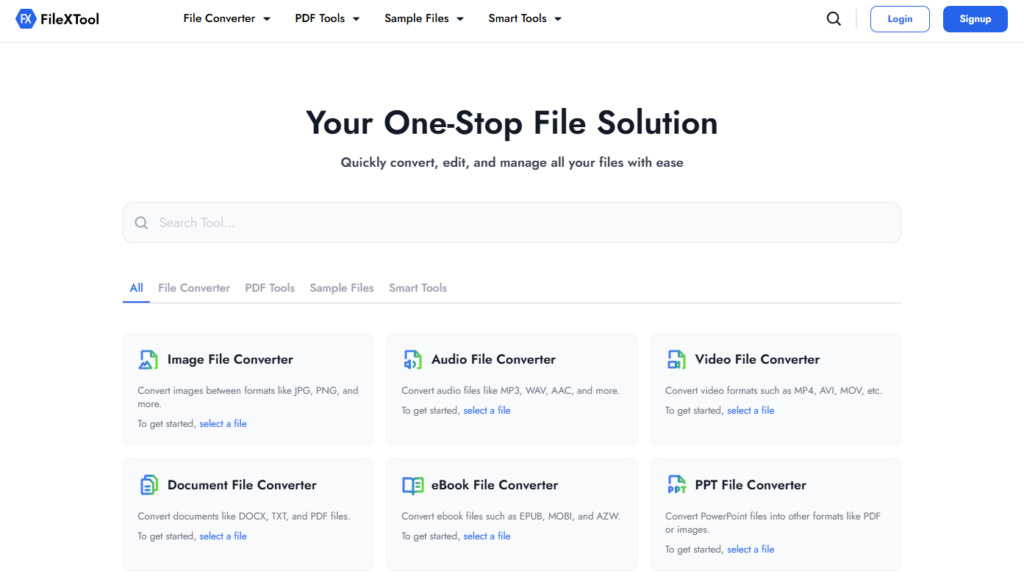
Open the FileXTool website in your browser to begin the process of learning how to convert PDF to Word using an easy online method.
Step 2: Click on the File Converter Option
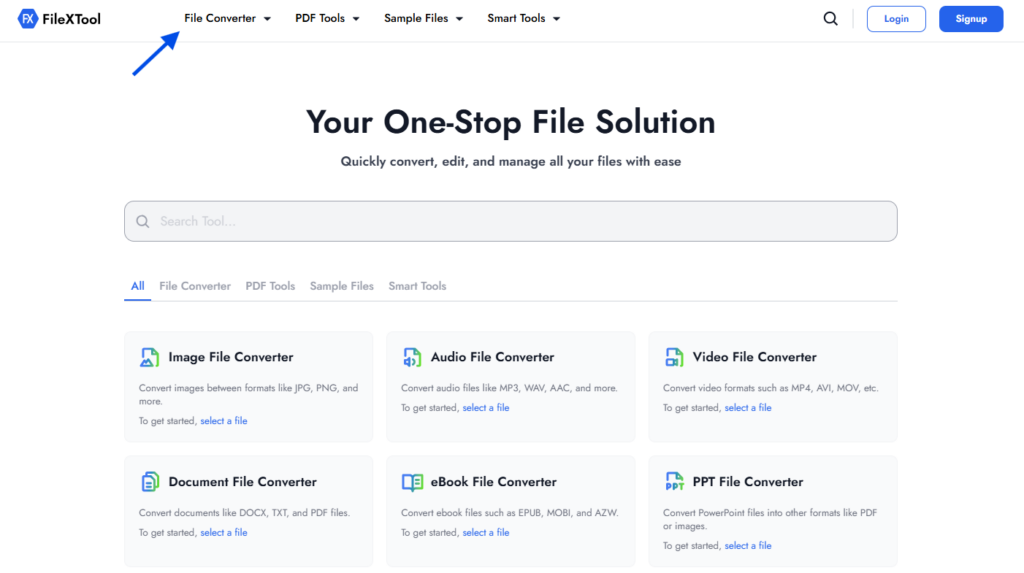
On the homepage, find and click the File Converter option. This section includes several tools designed to help users convert different types of files quickly.
Step 3: Select the Document File Converter Option
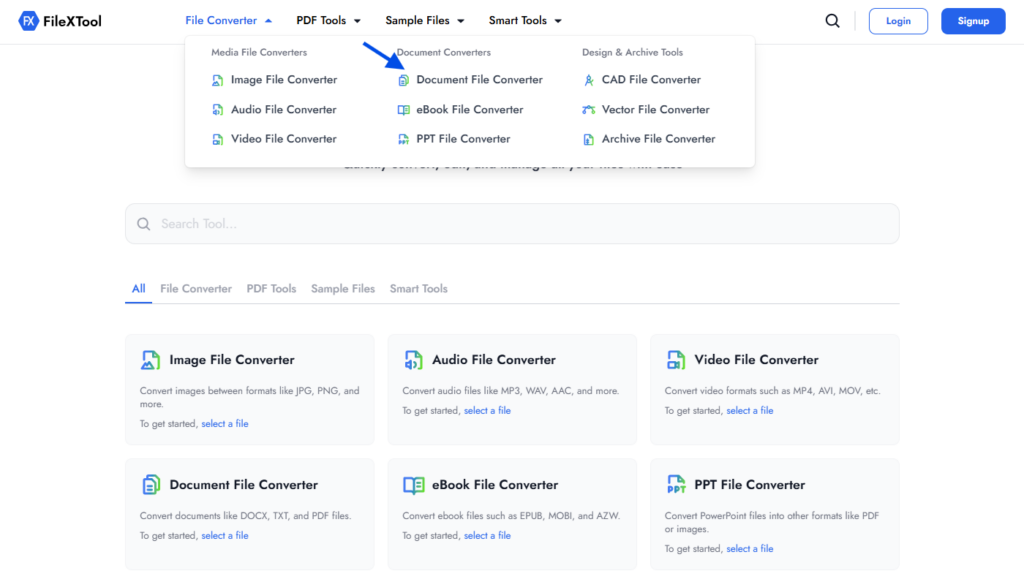
From the available tools, choose Document File Converter. This will open the conversion tool where you can convert PDF files into editable document formats.
Step 4: Choose the File Format
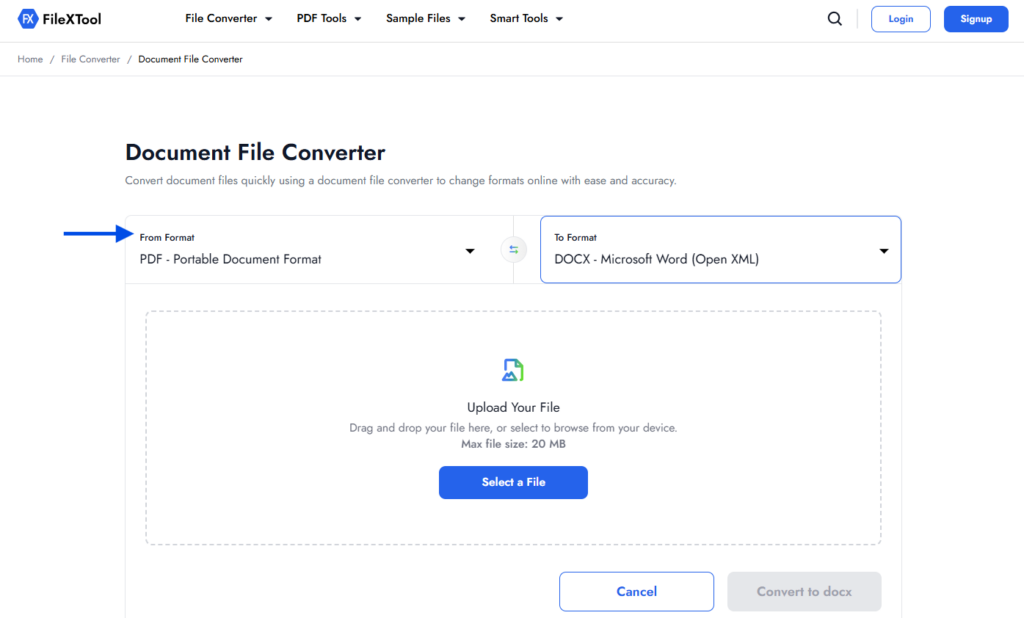
First, select the From Format, which is the format of the file you currently have. Then choose the To Format, which is the format you want to convert your file into, such as converting PDF into DOCX.
Step 5: Upload Your File
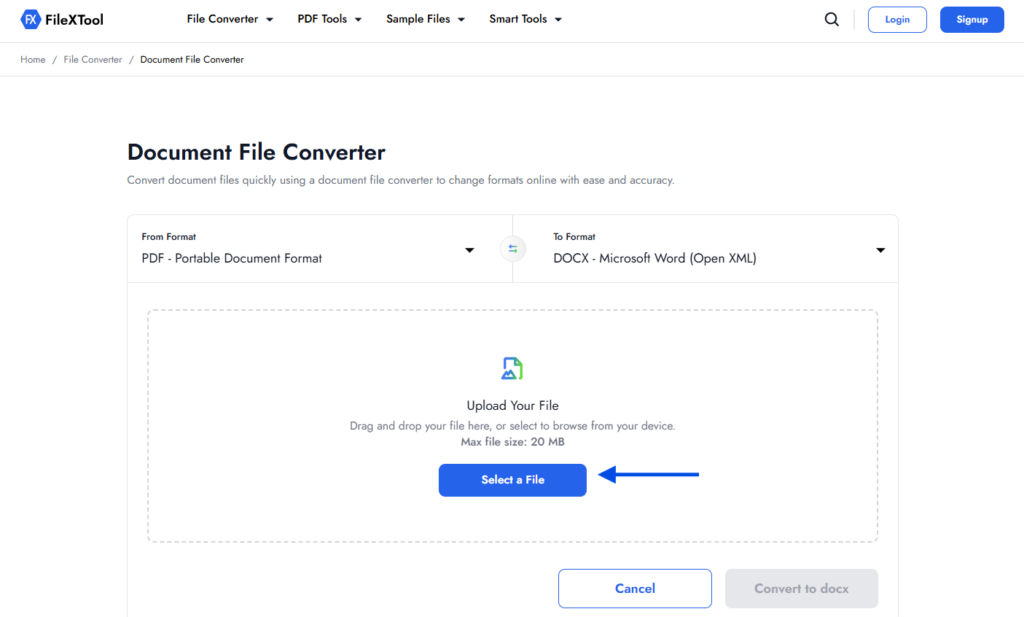
Click on Select a File and upload the document you want to convert from your device. The tool will prepare the file for the conversion process.
Step 6: Click on Convert
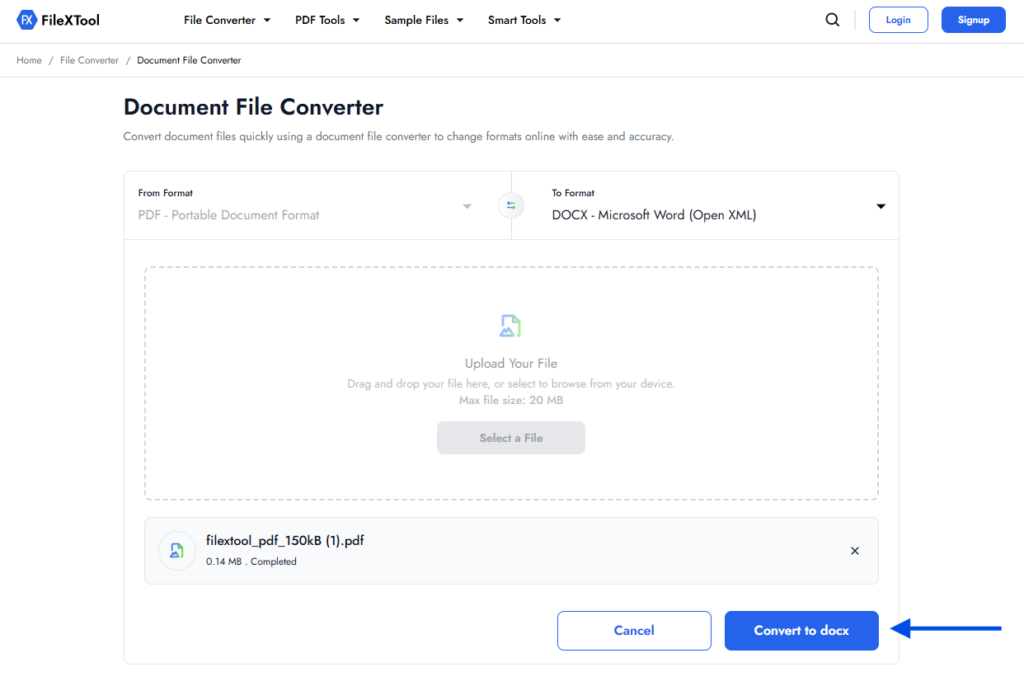
After uploading the file, click the Convert button to start the conversion process. The tool will begin converting your PDF file into a Word document.
Step 7: Download the Converted File
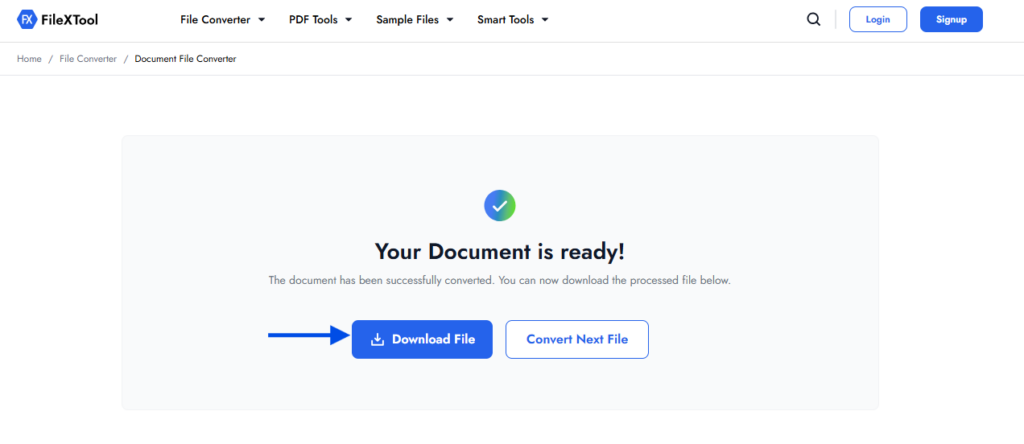
Once the conversion is complete, click Download to save the converted Word file to your device. You can now open and edit the document easily.
In many document workflows, converting files is only one step of the process. For example, when preparing presentations for sharing or documentation, tasks like How to Convert PPT to PDF can also help maintain consistent formatting across files.
Important Things to Check Before Converting PDF Files
Before learning how to convert PDF to Word, it is helpful to check a few basic things about the file. These small checks can improve the accuracy of the conversion and help ensure the document remains properly formatted after the process.
When using a best pdf to word converter, factors like document quality, formatting, and text clarity can affect how well the file converts into an editable Word document.
Check the Original Formatting
PDF files often contain complex layouts such as tables, images, or multiple columns. Reviewing the formatting before you convert PDF to Word helps you understand how the content may appear once converted into an editable document.
Ensure the PDF Contains Editable Text
Some PDFs are scanned documents or image-based files. These may require additional processing before the text becomes editable in Word.
Verify File Quality
A clear and properly structured document usually converts more accurately. This is especially useful when testing document workflows or working with different file types. For example, resources like Best Sample Files of Different Formats can help you understand how different file structures behave during conversions.
Checking these small details before starting how to convert PDF to Word can make the entire conversion process smoother and help maintain document accuracy.
Common Issues When Converting PDF to Word
When people learn how to convert PDF to Word, they sometimes notice small formatting changes after the conversion. This can happen because PDF files are designed for fixed layouts, while Word documents are meant for editing and flexible formatting.
Using a reliable best pdf to word converter can reduce these issues, but it is still helpful to review the converted document and adjust the formatting if needed.
Formatting Changes
PDF documents often contain tables, columns, or special layouts. When you convert PDF to Word, these elements may shift slightly and require small adjustments inside the Word file.
Missing Fonts
If the original PDF uses fonts that are not available on your system, the converted document may replace them with similar fonts. This can slightly change the appearance of the text.
Table Alignment Problems
Tables sometimes lose alignment during the conversion process. Reviewing tables and adjusting column widths after how to convert PDF to Word can help restore the original layout.
In document workflows where files need to be organized before editing, tasks like How to Reorder PDF Pages can also help structure the document properly before starting the conversion.
Situations Where Converting PDF to Word Is Useful
Learning how to convert PDF to Word can be very helpful in many everyday document tasks. While PDFs are great for sharing files with fixed formatting, converting them into Word documents makes editing and updating the content much easier.
Many professionals use a best pdf to word converter when they need to reuse or modify information from a PDF without creating the entire document again.
Common situations where people convert PDF to Word include:
- Editing contracts or agreements – Converting the PDF allows you to update text or clauses easily.
- Updating reports or documents – Businesses often need to revise reports that were originally shared as PDFs.
- Academic or research work – Students and researchers may convert PDFs to edit or reuse parts of the document.
- Content reuse – Writers and professionals may convert PDFs to extract and update written content.
- Preparing digital resources – Converting files makes it easier to add links, images, or other elements inside the document.
In many digital workflows, documents may also include scannable elements or links for sharing information. In such cases, guides like How to Generate QR Code can help add quick access links or digital references inside documents.
Understanding how to convert PDF to Word makes it easier to manage and update documents across different professional and personal tasks.
Practical Tips for Accurate PDF to Word Conversion
When learning how to convert PDF to Word, following a few practical tips can help ensure the converted document stays clear and properly formatted. Even when using a best pdf to word converter, small adjustments before and after conversion can improve the final result.
Paying attention to document quality and layout makes it easier to convert PDF to Word without losing important formatting elements such as headings, tables, or images.
Helpful Tips
- Use clear and well-structured PDFs – Documents with clean formatting usually convert more accurately.
- Check the layout after conversion – Review headings, paragraphs, and tables once the Word file is generated.
- Avoid very low-quality PDFs – Blurry or compressed documents may lead to formatting issues.
- Edit the Word file if needed – After learning how to convert PDF to Word, minor adjustments in Word can quickly restore the original layout.
Sometimes documents may include product codes, labels, or tracking elements as part of business workflows. In such cases, processes like how to generate barcode can help create scannable codes that can be added to editable documents after conversion.
Final Thoughts
Learning how to convert PDF to Word can make document editing much easier, especially when you need to update content, modify text, or reuse information from an existing PDF file. Converting a PDF into an editable Word document saves time and allows you to work with the content more flexibly.
Using a reliable best pdf to word converter helps ensure that the text, formatting, and layout remain as accurate as possible during the conversion process. Once converted, the document can be edited, updated, or reused for different professional and personal purposes.
Tools like FileXTool make it simple to convert PDF to Word directly from your browser without installing additional software. With just a few steps, you can quickly transform a PDF into an editable document and continue working with it more efficiently.