


Learning how to convert ppt to pdf is a simple process that allows you to turn your PowerPoint presentation into a secure and shareable document format. Converting PPT files into PDF ensures consistent formatting across different devices and platforms.
Many users search for how to convert ppt to pdf when they need to send presentations professionally, print slides, or prevent unwanted edits. A PDF version keeps the layout, fonts, and design intact.
If you want to convert ppt into pdf file quickly without technical complexity, this guide explains the exact steps in a clear and beginner-friendly way.
How to Convert PPT to PDF Step by Step
Learning how to convert ppt to pdf is simple when you follow the correct process. These steps explain exactly how to convert PPT into PDF file format without affecting layout or quality. Even if you are doing it for the first time, you can easily convert PowerPoint to PDF by following the instructions below.
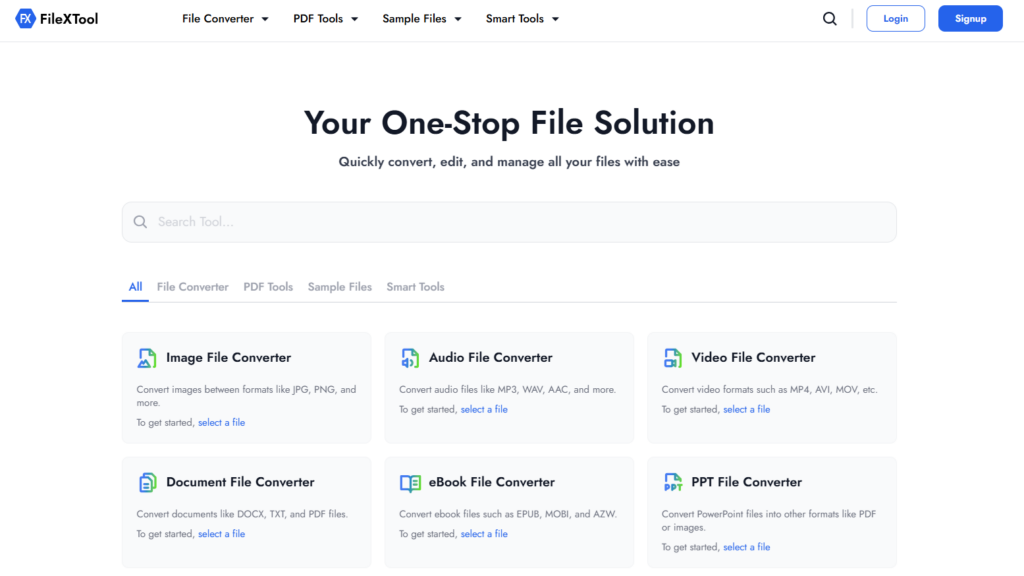
Step 1: Open the FileXTool Website
Start by opening your web browser and visiting the FileXTool website. Since the tool works online, you do not need to install any software. This makes it convenient for users who want to convert ppt to pdf online quickly and securely.
Step 2: Click on the File Converter Option
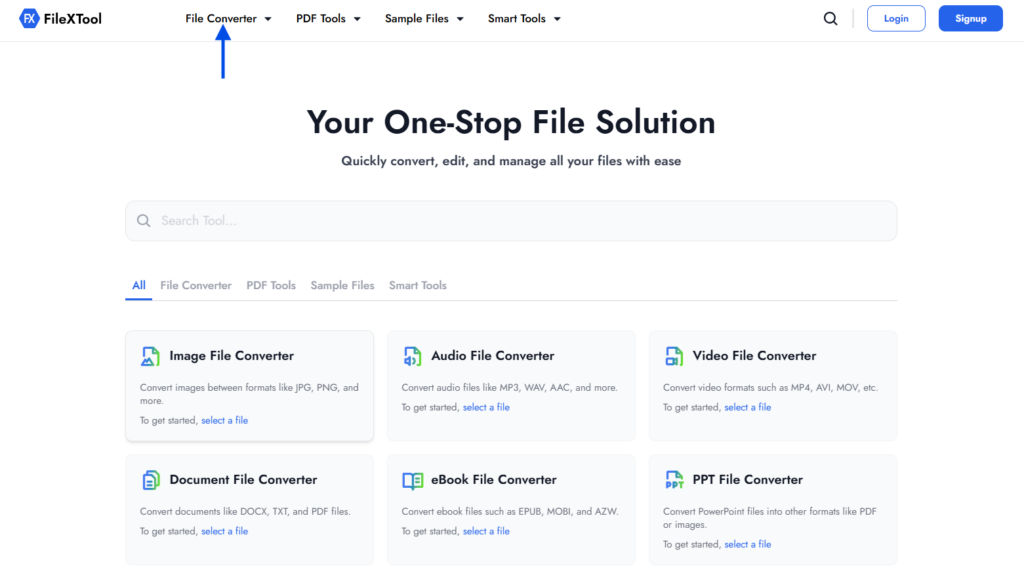
Once you are on the homepage, look for the File Converter option. This section includes different file conversion tools designed to help users change formats easily. Clicking on it will take you to the conversion interface.
Step 3: Select the PPT File Converter Option
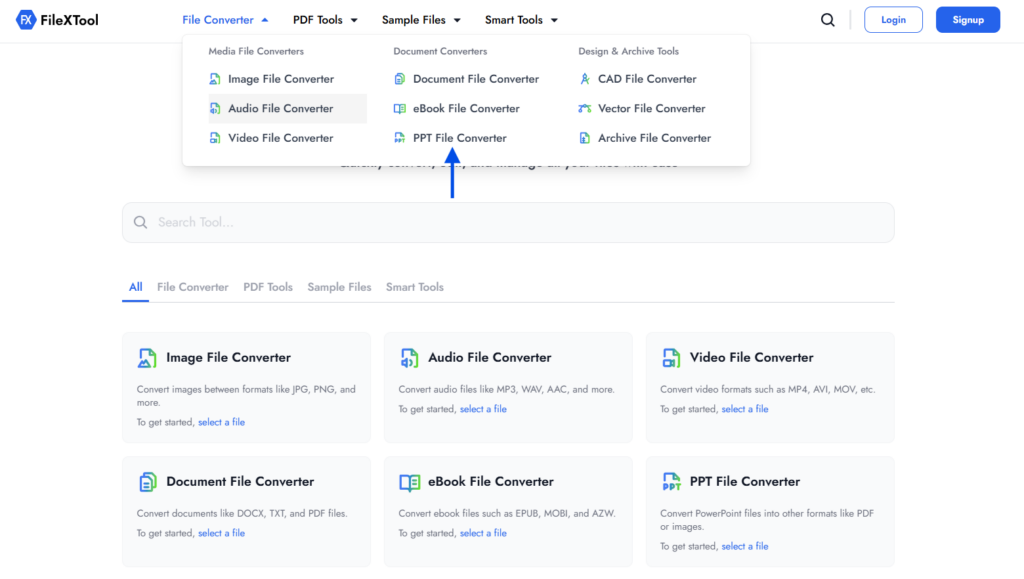
From the available converter tools, choose the PPT File Converter option. This tool is specifically created for users who want to understand how to convert ppt to pdf or change PowerPoint files into other formats.
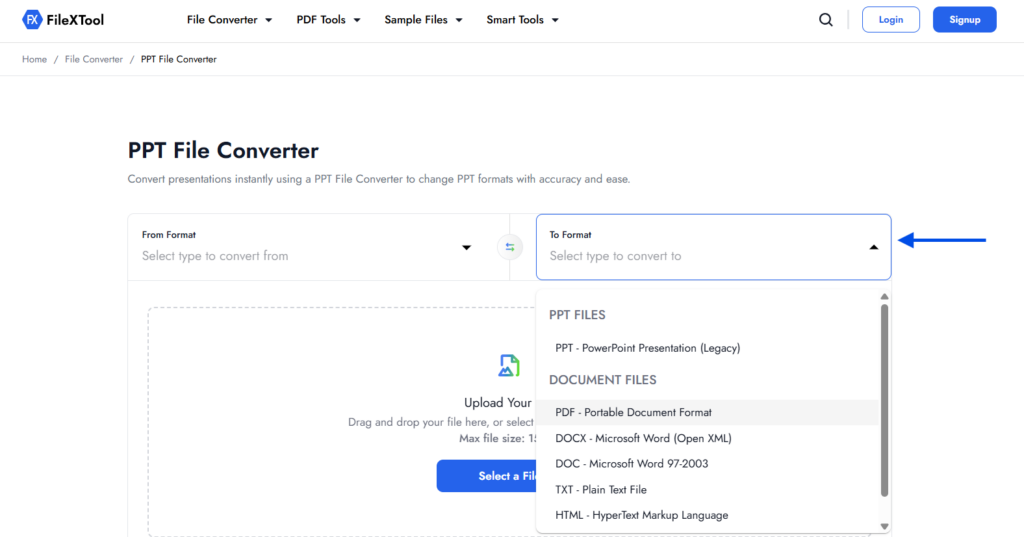
Step 4: Choose the Convert From Type
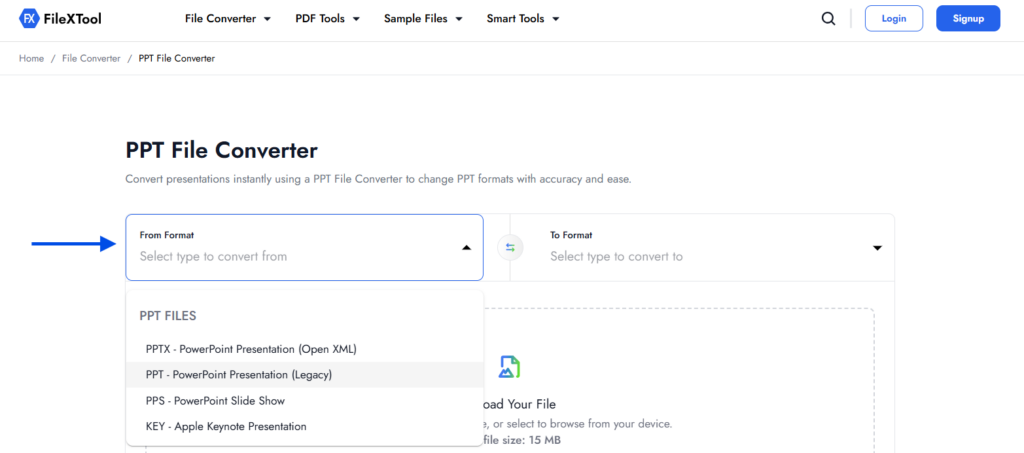
In the conversion settings, select the file type you are converting from. Click on “PPT – PowerPoint Presentation (Legacy)” to confirm that your source file is a PowerPoint presentation.
Step 5: Choose the Convert To Type
Next, choose the format you want to convert your file into. Select “PDF – Portable Document Format” to ensure your presentation will be converted into a PDF file.
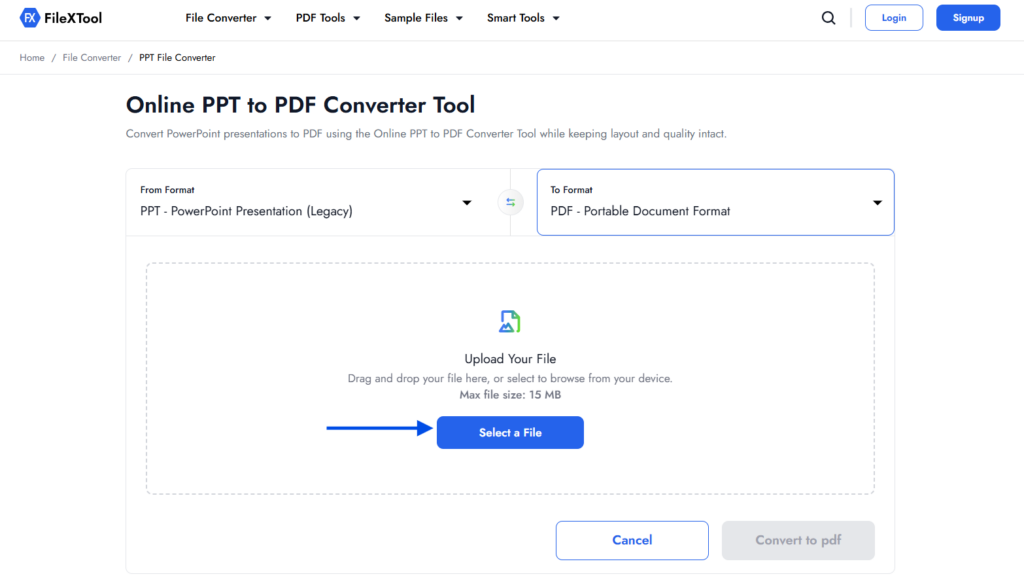
Step 6: Click on “Select a File” to Upload Your PPT
Now click on the “Select a File” button and upload the PowerPoint file from your device. Make sure the file is complete and finalized before proceeding to convert ppt into pdf file format.
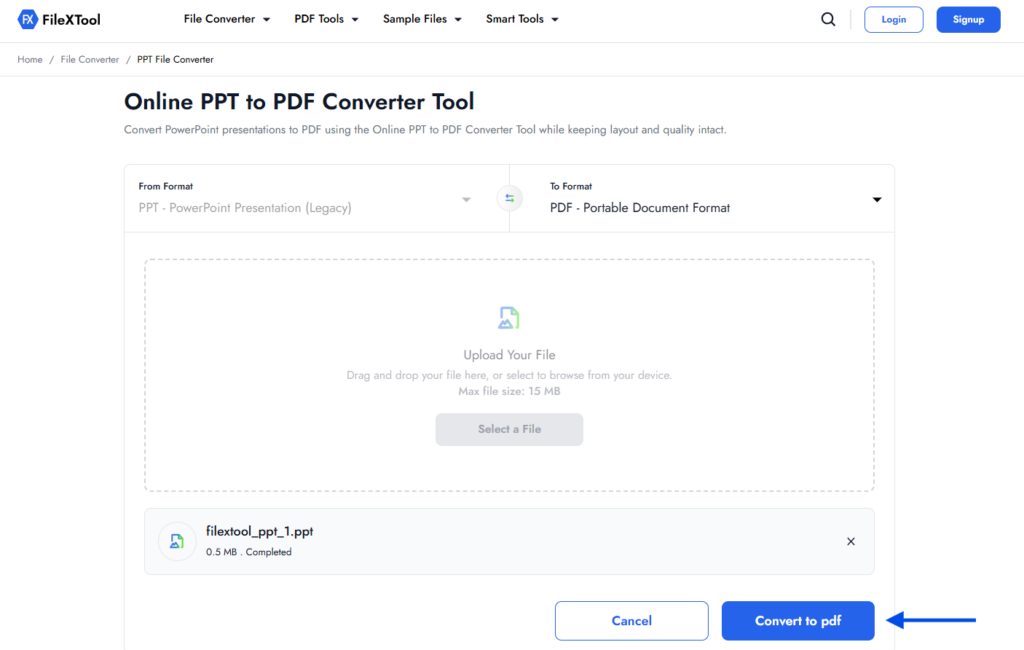
Step 7: Click on “Convert to PDF”
After selecting the correct file format and uploading your presentation, click on the “Convert to PDF” button to start the process.
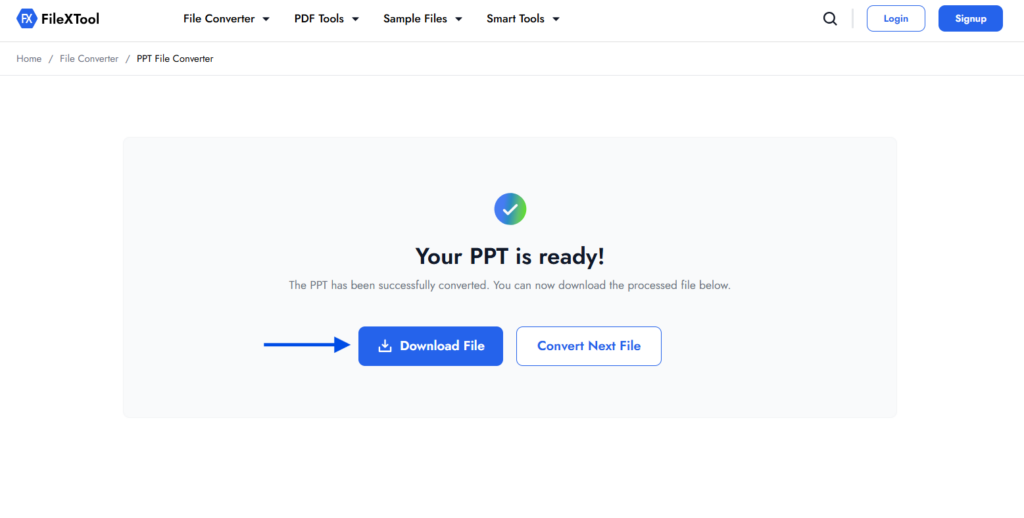
Step 8: Click on Download to Save the Converted PDF
After uploading your file, the tool will process the conversion. Once complete, click on Download to save the converted PDF to your device. You have now successfully learned how to convert ppt to pdf in just a few simple steps.
When Do You Need to Convert PPT to PDF?
There are several practical situations where understanding how to convert ppt to pdf becomes important. While PowerPoint files are great for presentations, they are not always ideal for sharing or printing. Converting them into PDF format ensures better compatibility and protects the original layout.
Many users look for how to convert ppt to pdf when they want to send presentations professionally without worrying about formatting changes. Whether for business, academic, or personal use, converting a PowerPoint presentation into a PDF helps maintain structure and readability.
Sharing Presentations Professionally
When sending files to clients or colleagues, converting PowerPoint to PDF ensures the recipient sees the slides exactly as intended, regardless of their device or software version.
Preventing Editing or Layout Changes
PowerPoint files can be edited easily. If you want to lock the content and design, it is better to convert ppt into pdf file format before sharing.
Printing Slides for Meetings
PDF files are more print-friendly and maintain consistent margins and slide proportions. This makes printing smoother and more predictable.
Uploading Files to Portals or Websites
Many platforms prefer or require PDF uploads. Learning how to convert ppt to pdf online makes it easier to submit assignments, reports, or business documents.
Combining with Other PDF Documents
After converting your presentation, you may want to merge it with other reports or documents. In that case, you can explore our guide on How to Merge PDF Files to organize everything into a single, structured document.
Benefits of Converting PowerPoint to PDF
Once you understand how to convert ppt to pdf, you realize that the process is not just about changing file format. It improves presentation control, accessibility, and long-term usability. Many users choose to convert ppt into pdf file format because PDF provides stability that PowerPoint files sometimes lack.
Whether you convert ppt to pdf online or through software, the advantages remain consistent. Converting PowerPoint to PDF ensures that your content stays structured, professional, and easy to share.
Better Control Over Presentation Output
- Ensures slides appear exactly as designed
- Prevents layout shifts on different devices
- Keeps fonts and images aligned properly
When you convert PowerPoint to PDF, the final output remains consistent across platforms.
Enhanced Security and File Integrity
- Reduces risk of accidental edits
- Protects original slide structure
- Makes file sharing more controlled
Learning how to convert ppt to pdf helps you share finalized versions without worrying about changes.
Easier Document Distribution
- Compatible with almost all devices
- Opens without requiring PowerPoint software
- Suitable for email attachments and uploads
Many professionals prefer to convert ppt to pdf online for quick sharing and accessibility.
Improved Archiving and Storage
- Ideal for long-term storage
- Maintains formatting over time
- Works well with document management systems
After converting, you can also organize documents efficiently. For example, if you need to rearrange content within the final PDF, you can explore How to Reorder PDF Pages to structure your file properly.
Professional Printing and Documentation
- Maintains consistent page size
- Produces clean print results
- Suitable for official submissions
When you convert ppt into pdf file format, printing becomes more predictable and professional.
Things to Check Before You Convert PPT to PDF
Before you finalize how to convert ppt to pdf, it is important to review a few details to ensure the final document looks professional and functions properly. Even though the process to convert ppt into pdf file format is simple, small mistakes can affect formatting, readability, or file usability.
Whether you choose to convert ppt to pdf online or through another method, checking these points beforehand helps avoid unnecessary revisions and ensures a smooth result.
- Verify that all slides are complete and finalized before conversion
- Check for missing fonts, images, or design elements
- Review slide alignment and spacing for consistency
- Ensure animations are not essential, as PDFs do not support motion effects
- Confirm hyperlinks are properly inserted and working
- Remove unnecessary slides before you convert PowerPoint to PDF
- Double-check spelling and formatting to avoid post-conversion edits
- Make sure the file size is optimized for sharing or uploading
- Test the downloaded PDF to ensure layout matches the original presentation
After conversion, you may also need to organize or adjust the PDF further. For example, if you only need certain slides from the final document, you can explore How to Split PDF Pages to extract specific sections easily.
Common Problems When You Convert PPT to PDF
Even after learning how to convert ppt to pdf, some users notice small formatting changes in the final file. These issues often appear when fonts, spacing, or slide alignment are not fully supported during conversion.
Another common problem occurs when users try to convert ppt to pdf online using unreliable tools, which may reduce image quality or increase file size. Choosing a stable platform like FileXTool helps maintain layout consistency and ensures you properly convert ppt into pdf file format without compromising clarity.
Since PDF is a static format, animations and transitions will not carry over after you convert PowerPoint to PDF, so reviewing your slides beforehand is always recommended.
If you want to make your static PDF more interactive, you can add a QR code inside it that links to videos or additional resources. In that case, you can explore our detailed guide on How to Generate QR Code to enhance your converted documents.
Final Thoughts
Understanding how to convert ppt to pdf is essential when you want to share presentations in a secure, professional, and universally accessible format. A properly converted file preserves your layout, fonts, and visuals while making it easy to open on any device without compatibility issues.
Whether you need to convert ppt to pdf online for work, academics, or client submissions, choosing the right method ensures quality and reliability. When you convert ppt into pdf file format using a trusted tool like FileXTool, the process becomes quick, smooth, and dependable—without unnecessary formatting errors or quality loss.
Now that you know how to convert ppt to pdf step by step, you can confidently create shareable, print-ready documents anytime you need them.