


Managing long documents becomes much easier when pages are properly organized. If you’re wondering how to add page numbers to PDF, the process is simple and can be done in just a few steps without needing any technical skills.
Page numbering improves readability and helps users navigate documents more efficiently. It is especially useful for reports, assignments, and business files where structure and clarity matter the most.
In this guide, you will learn a practical way to add numbers in PDF files step by step. This method allows you to format your document properly while keeping the layout clean and professional.
Steps to Add Page Numbers to PDF
If you are wondering how to add page numbers to PDF, the process is simple when you follow the right steps. With a clear method, you can add numbers in PDF files without affecting the layout or readability.
Using the right settings, you can control position, style, and page range easily. This helps you add page numbers to document files in a more structured and professional way.
Step 1: Open the FileXTool Website

Open the FileXTool website in your browser to start the process of adding page numbers to document files easily.
Step 2: Go to the PDF Tools Section and Select Add Page Numbers
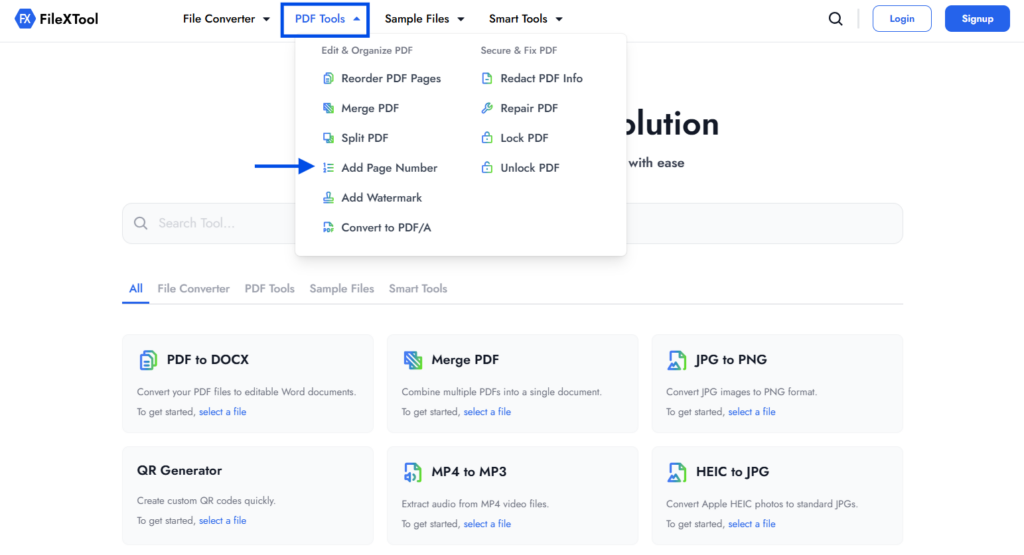
In the homepage, navigate to the PDF Tools section and choose the Add Page Numbers option to begin pdf page numbering.
Step 3: Upload Your PDF File
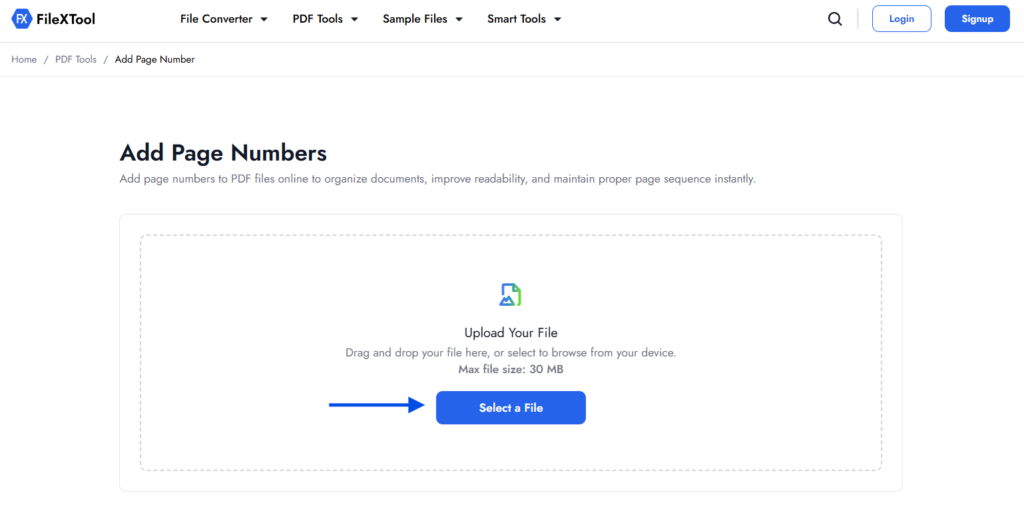
Click on the upload option and select the PDF file where you want to insert page numbers in PDF format. Make sure your file is properly formatted so the numbering appears correctly across all pages.
Step 4: Click on Change Preferences and Set Options
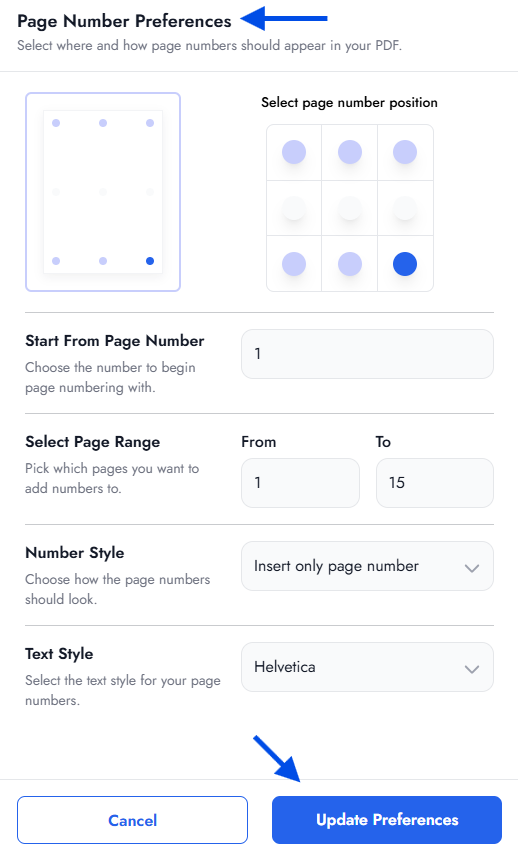
Open the preferences to customize position, page range, numbering style, and formatting. This step allows you to control how you add numbers in PDF and ensures the output looks clean and professional.
Step 5: Click on Add Page Numbers
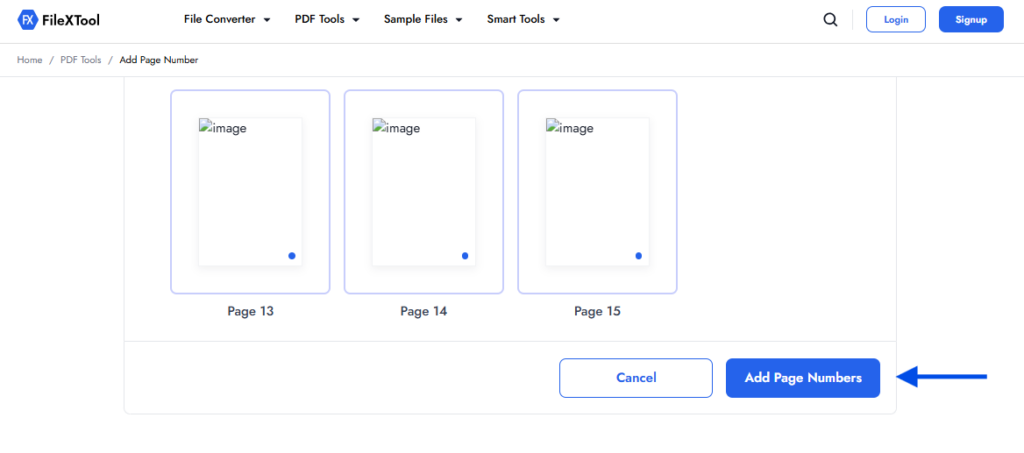
After setting everything, click the Add Page Numbers button to apply changes and complete the pdf page numbering process. This is where you finalize how to add page numbers to PDF based on your selected settings.
Step 6: Download Your Updated PDF File

Once the process is complete, download your updated file with page numbers added correctly. After downloading, you can review the file to ensure everything looks perfect and aligned as expected.
Where Page Numbering Is Most Useful in PDFs
When working with multi-page documents, understanding how to add page numbers to PDF becomes more useful in specific situations. Page numbering helps organize content, improves navigation, and makes documents easier to read.
It is especially helpful when your file contains structured information that needs to be accessed quickly. Below are some common use cases where page numbering adds real value.
Reports and Business Documents
Page numbers help in navigating long reports and presentations. Before adding numbering, you can organize files using guides like How to Merge PDF Files for better structure.
Academic Assignments
Students and researchers often need properly formatted documents. Using pdf page numbering makes assignments easier to review and reference.
In many cases, understanding how to add page numbers to PDF also helps maintain consistency across multiple submissions and improves overall presentation quality.
Legal and Official Files
Legal documents require clear referencing. When you insert page numbers in PDF, it becomes easier to track clauses and sections.
Ebooks and Long PDFs
For lengthy documents, page numbers improve user experience by helping readers move between sections easily.
Internal Team Documents
Teams working on shared files benefit from structured documents. Adding page numbers reduces confusion during collaboration.
Common Mistakes to Avoid While Adding Page Numbers
While learning how to add page numbers to PDF, avoiding common mistakes is just as important as applying them correctly.
- Placing page numbers in the wrong position
- Skipping the first page incorrectly
- Letting numbers overlap with content
- Using inconsistent numbering styles
- Ignoring margins and spacing
- Not checking preview before finalizing
Proper formatting also matters when combining elements like overlays. For example, guides like How to Add Watermark to PDF can help maintain layout balance.
Tips to Make PDF Page Numbering Look Professional
Once you know how to add page numbers to PDF, focusing on presentation helps improve the overall quality of your document. Clean formatting makes your file look more structured and easier to navigate.
The placement of page numbers should be consistent throughout the document. Common positions like bottom center or corners work best because they are visible without distracting the reader. Proper alignment ensures a smooth reading experience.
Font style and size also play an important role. Page numbers should be readable but not too bold. Keeping them subtle helps maintain focus on the main content. This is especially useful when working with structured files created using guides like How to Convert PPT to PDF.
In some cases, you may want to hide page numbers on the first page or start from a specific section. This approach is commonly used in professional reports to improve document flow.
When You Should Add Page Numbers to a Document
Knowing when to use page numbering is just as important as knowing how to add page numbers to PDF. It depends on how your document will be used and shared.
Page numbers are especially helpful in situations where structure and clarity are important.
- When sharing documents with teams for review
- When printing long PDFs for easier navigation
- When sending files to clients for professional presentation
- When working with multi-page reports or structured content
Using page numbers in these scenarios improves readability and makes your document easier to handle.
Final Thoughts
Adding page numbers is a simple step that can significantly improve the clarity and professionalism of your documents. Whether you are working on reports, assignments, or business files, structured formatting always makes a difference.
If you understand how to add page numbers to PDF, you can present your content in a more organized way and make navigation easier for readers, especially in long or structured documents.
Tools like FileXTool make it easy to apply such features quickly, helping you manage and organize your PDFs without unnecessary complexity.
FAQs
1. What is the easiest way to add page numbers?
The easiest way is to use an online tool like FileXTool. It allows you to upload your file, set position and style, and quickly add page numbers without any technical steps.
2. How do I quickly add page numbers to a PDF?
To quickly understand how to add page numbers to PDF, you can use FileXTool. Just upload your file, choose preferences, and download the updated version in seconds.
3. Can I customize page number position in a PDF?
Yes, most tools allow you to choose where the numbers appear, such as top, bottom, or corners. This makes it easier to insert page numbers in PDF while keeping the layout clean.
4. Is it possible to skip the first page while numbering?
Yes, you can skip the first page or start numbering from any page. This is useful when working with reports, cover pages, or structured documents.
5. Does adding page numbers affect PDF formatting?
No, when done correctly, it does not affect formatting. If you follow the right method for how to add page numbers to PDF, the content remains unchanged and well-structured.