


Adding a watermark to a PDF is a simple way to protect your document or show ownership. Many people use watermarks to mark files as confidential, add branding, or prevent unauthorized use. If you are wondering how to add watermark to PDF, the process is easier than most people think.
A watermark can be text or an image placed behind or over the content of a document. Learning how to add watermark to PDF helps ensure your files remain identifiable and professional, especially when sharing them online.
In this guide, you will learn how to add watermark to PDF step by step using a simple method. Using FileXTool, the process works directly in your browser and allows you to quickly insert watermark in PDF files without complicated software or installation.
How to Add Watermark to PDF (Step-by-Step Guide)
If you want to add watermark to PDF, following a clear step-by-step process makes it quick and easy. The steps below explain how you can insert a watermark in your document using simple online tools while keeping full control over the watermark style and placement.
Step 1: Open the FileXTool Website

Start by opening the FileXTool website in your browser. This platform provides several PDF utilities that allow you to manage documents directly online, including options to add watermark to PDF files quickly.
Step 2: Click on the PDF Tools Option

On the homepage, look for the PDF Tools section. This area contains different tools designed to help you manage and edit PDF documents easily.
Step 3: Select the Add Watermark Tool
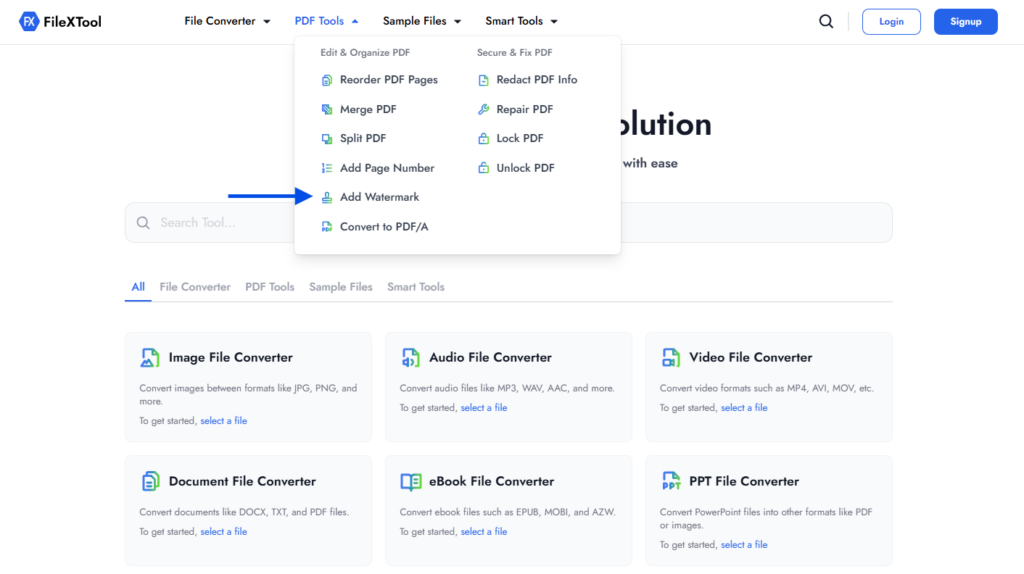
From the list of available tools, choose Add Watermark. This will open the watermark editor where you can begin preparing your watermark settings.
Step 4: Upload the PDF File

Click on the Select File or Upload option and choose the PDF file where you want to insert watermark in PDF. Once uploaded, the tool will load your document so you can apply the watermark.
Step 5: Set Your Watermark Preferences

Click on Change Preferences to open the watermark settings. Here you can choose how the watermark should appear in your PDF.
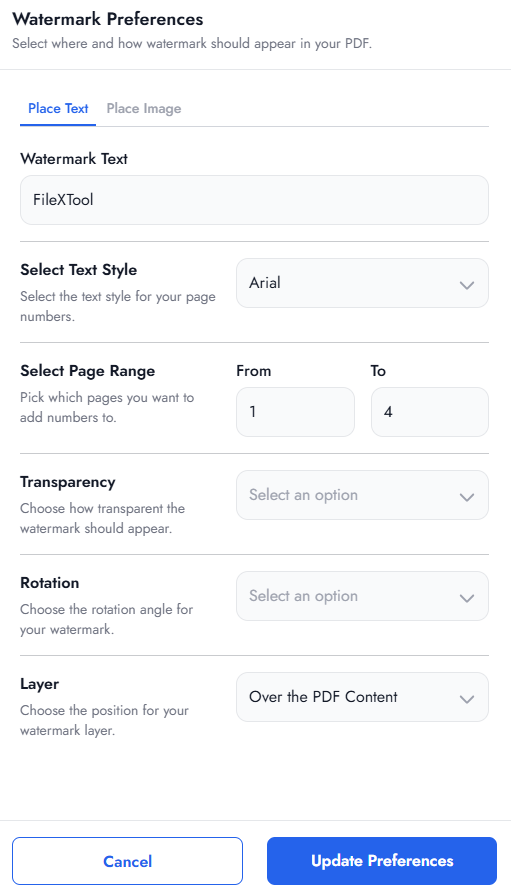
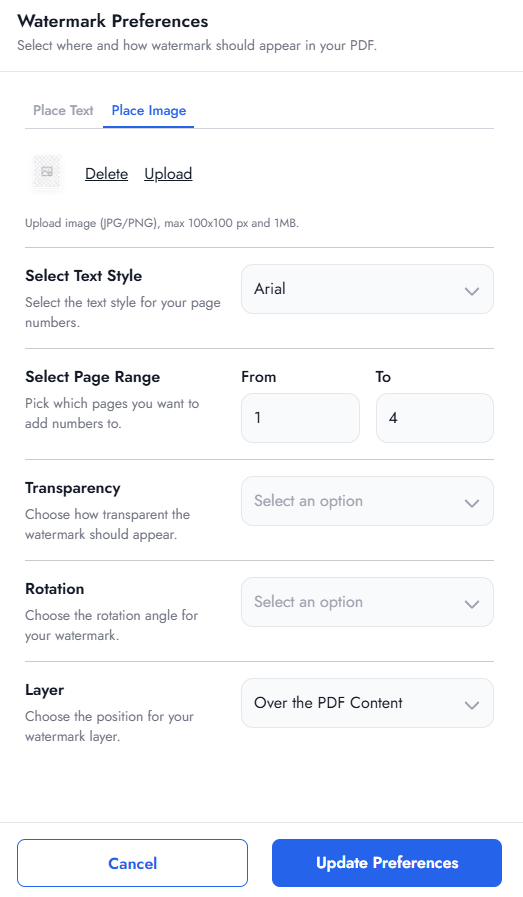
You can customize several options such as:
- Add text watermark or image watermark
- Select font style and size
- Choose page range where the watermark should appear
- Adjust transparency and rotation
- Set the layer position above or below the document content
These options allow you to fully control how you add image watermark to PDF or text watermark depending on your requirement.
Step 6: Click on Add Watermark

After adjusting the settings, click the Add Watermark button. The tool will process your file and apply the watermark based on your selected preferences.
Step 7: Download Your File

Once the watermark has been added, click Download to save the updated PDF file to your device. If you want to make further changes, you can also select Next to continue editing your document.
Types of Watermarks You Can Add to a PDF
When learning how to add watermark to PDF, it is helpful to understand the different types of watermarks you can use. Most PDF tools allow you to add either a text watermark or an image watermark depending on the purpose of your document.
Choosing the right type helps you insert watermark in PDF files in a way that protects your content while still keeping the document readable and professional.
Text Watermark
A text watermark is one of the most common ways to add watermark to PDF files. It usually includes words such as “Confidential,” “Draft,” or a company name placed across the document.
Text watermarks are easy to customize. You can change the font style, size, transparency, rotation, and placement to ensure the watermark is visible but does not affect the readability of the content.
Image Watermark
An image watermark is useful when you want to add branding elements such as a logo or symbol to your document. Many businesses prefer this method because it allows them to add image watermark to PDF files while maintaining a professional look.
Image watermarks can also be adjusted for size, transparency, and placement so that they appear clearly without blocking the important information in the PDF.
Benefits of Adding a Watermark to PDF Files
Adding a watermark to a document helps protect its originality and shows ownership. When you add watermark to PDF, it becomes easier to prevent misuse and clearly communicate the purpose of the file. Understanding how to add watermark to PDF is especially helpful when sharing important documents with clients, teams, or the public.
Watermarks are also useful when sharing documents online or within organizations. They help identify the status of a file, such as draft or confidential, while keeping the content secure and professionally presented.
Key Benefits
- Protects Document Ownership – A watermark clearly shows who created or owns the document.
- Improves Branding – Businesses can add logos or names to maintain brand visibility.
- Prevents Unauthorized Use – Watermarks discourage copying or misuse of important files.
- Helps Identify Document Status – Labels like Draft or Confidential make the document purpose clear.
After adding watermarks, you may also need to organize or edit your document pages. In such cases, learning tasks like How to Reorder PDF Pages can help you manage the structure of your PDF more effectively.
Common Mistakes to Avoid When Adding Watermarks
While learning how to add watermark to PDF, some common mistakes can affect the appearance or usability of the document. Avoiding these issues helps ensure your watermark looks professional and does not interfere with the content.
Using Very Large Watermarks
Large watermarks may cover important information in the document. Always adjust size and transparency so the watermark remains visible but does not block the text.
Placing the Watermark in the Wrong Layer
If the watermark is placed above the content, it might make the document difficult to read. Placing it behind the content usually keeps the layout cleaner.
Applying Watermarks to Unnecessary Pages
Sometimes watermarks are added to every page even when not required. Choosing the correct page range ensures the watermark appears only where it is needed.
Ignoring Other Document Edits
Watermarks are just one part of document management. In many cases, you may also need to perform actions like How to Split PDF Pages to organize or separate sections of a document properly.
Best Practices for Using PDF Watermarks
Using watermarks correctly can improve both the security and appearance of your documents. When you insert watermark in PDF files, small adjustments in placement and transparency can make a big difference in readability while learning how to add watermark to PDF effectively.
For example, keeping the watermark slightly transparent ensures the document content remains easy to read. Choosing the right position, such as diagonally across the page or centered in the background, also helps maintain a professional layout when you add watermark to PDF documents.
Another good practice is to use consistent watermark styles for similar documents. If you frequently work with presentation files that are later converted into PDFs, tasks like How to Convert PPT to PDF can help ensure the watermark appears correctly after conversion.
When You Should Add a Watermark to a PDF
Knowing how to add watermark to PDF is helpful, but it is equally important to understand when it should be used. Watermarks are mainly applied when documents need identification, branding, or protection.
They are especially useful when sharing files publicly or sending documents for review. Adding a watermark ensures that readers understand the status or ownership of the file.
Common situations where you should add a watermark include:
- Sharing draft documents that are not finalized
- Sending confidential files within an organization
- Protecting copyrighted materials from misuse
- Branding official documents with company logos
- Marking review copies before publishing
In many workflows, watermarking is combined with other document tasks. For example, when preparing multiple files for distribution, processes like How to Merge PDF Files can help combine documents before applying the final watermark.
If you are testing PDF tools or practicing document workflows, resources like 10 Best Sample Files of Different Formats can also help you experiment with different file types before applying watermarks.
Some businesses also combine watermarking with other digital elements such as verification links or scannable codes. In those cases, guides like How to Generate QR Code can be useful for adding interactive information to documents.
Final Thoughts
Learning how to add watermark to PDF is a simple but powerful way to protect documents and maintain professional presentation. Whether you want to mark a file as confidential, add branding, or prevent unauthorized use, watermarking provides an effective solution.
Tools like FileXTool make it easier to add watermark to PDF files directly from your browser without complicated software. With the right settings and best practices, you can quickly apply text or image watermarks while keeping your documents clear and organized.
FAQs
1. How do I add a watermark to a PDF for free?
You can add watermark to PDF for free using FileXTool. Simply upload your PDF file, adjust the watermark settings such as text, image, transparency, or page range, and download the updated document. FileXTool makes how to add watermark to PDF a simple process without installing any software.
2. What is the free software for watermarking PDF files?
FileXTool is a simple option for watermarking PDF files. It allows you to insert watermark in PDF by uploading your document and adjusting settings like transparency, page range, font style, or watermark position. With FileXTool, you can quickly add watermark to PDF without complicated setup.
3. Why should I use a watermark?
A watermark helps protect your document and clearly shows ownership. When you add watermark to PDF, it can display labels like “Confidential,” “Draft,” or a company logo, which helps prevent misuse and keeps your files properly identified when shared. Knowing how to add watermark to PDF is useful when you want to protect important documents before distributing them.
4. Can I add an image watermark to a PDF?
Yes, most modern PDF tools allow you to add image watermark to PDF files. This option is useful for adding logos or branding elements while keeping the document readable. With FileXTool, you can upload your image and easily insert watermark in PDF with adjustable size, transparency, and placement.
5. Does adding a watermark affect the quality of a PDF?
No, adding a watermark does not usually reduce the quality of a PDF. The watermark appears as a separate layer on the document. When learning how to add watermark to PDF using FileXTool, the original text and images remain unchanged while the watermark is added for identification or branding.