


Video files often contain useful audio like music, podcasts, interviews, or lectures, but in many cases, users only need the audio part. That’s where understanding how to convert MP4 to MP3 becomes important, especially when you want quick access without playing the full video.
When you convert video to audio, it becomes easier to listen on the go, save storage space, and reuse content in different ways. Whether you want to convert MP4 to MP3 online for personal use or professional tasks, the process is simple and does not require technical skills.
In this guide, you will learn how to convert MP4 to MP3 step by step using an easy method. This approach helps you convert video to MP3 quickly while maintaining good audio quality.
How to Convert MP4 to MP3 (Step-by-Step Guide)
Learning how to convert MP4 to MP3 is simple when you follow a clear step-by-step process. The steps below will help you quickly convert your video into audio without any confusion.
Step 1: Open the FileXTool Website
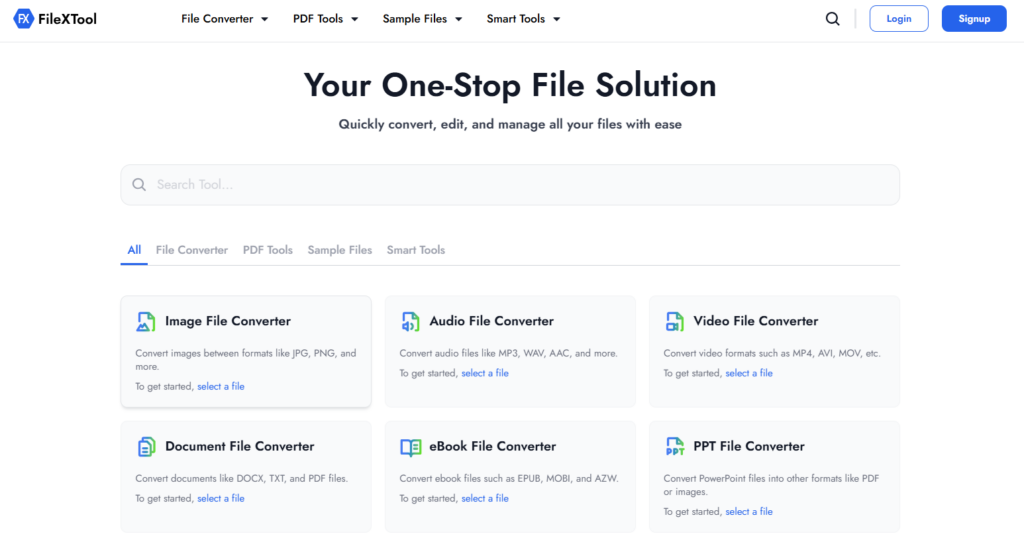
Open the FileXTool website in your browser to begin the process of how to convert MP4 to MP3 using a simple online method.
Step 2: Click on the File Converter Option
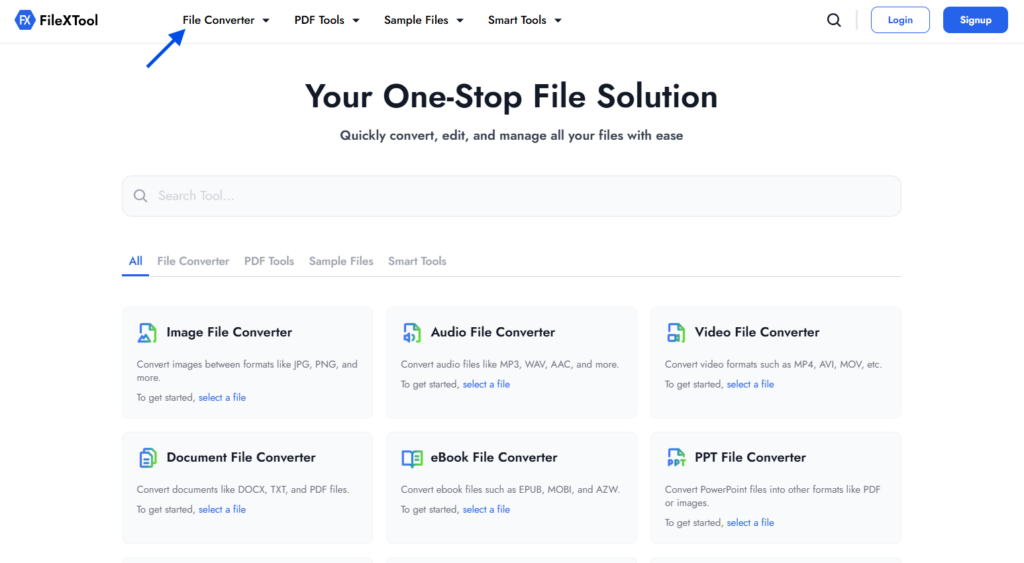
On the homepage, click on the File Converter option. This section includes tools that help you convert video to audio and manage different file formats.
Step 3: Select Video File Converter Option
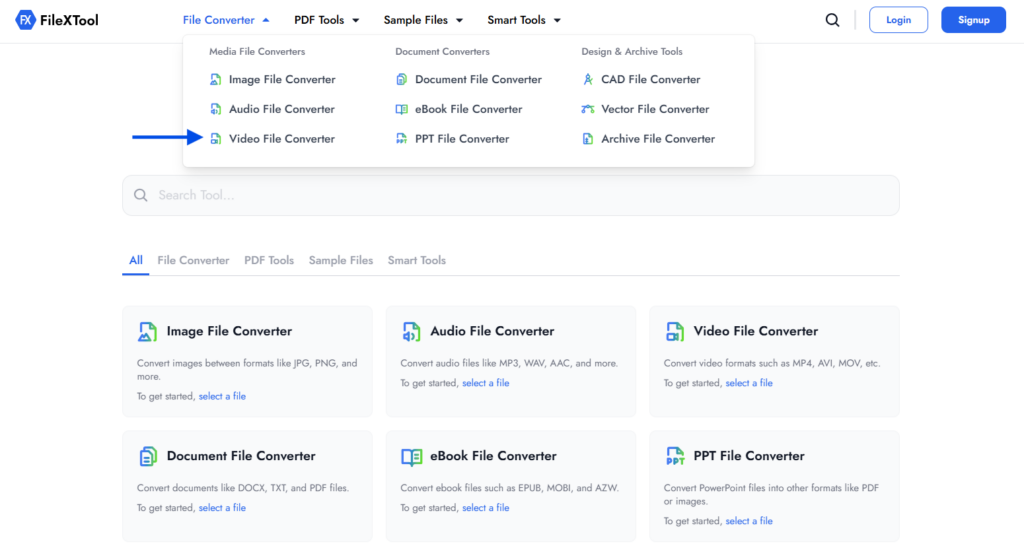
From the available tools, choose the Video File Converter. This tool allows you to convert MP4 to MP3 online quickly and efficiently.
Step 4: Select the File Format
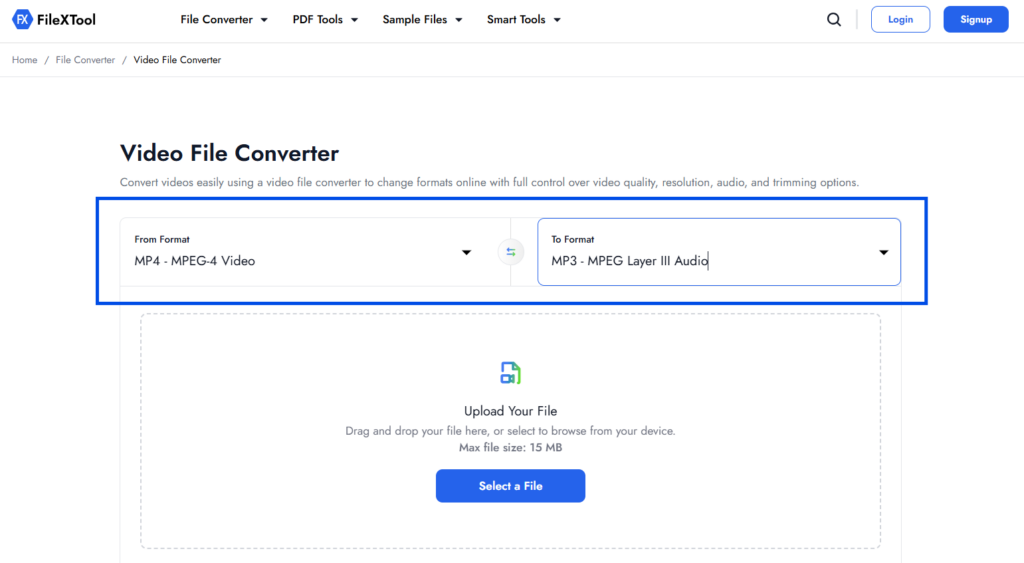
Choose the From Format (such as MP4) and then select the To Format (MP3). At this stage, you can easily convert MP4 to MP3 by selecting the desired output format and continuing the process.
Step 5: Upload Your Video File
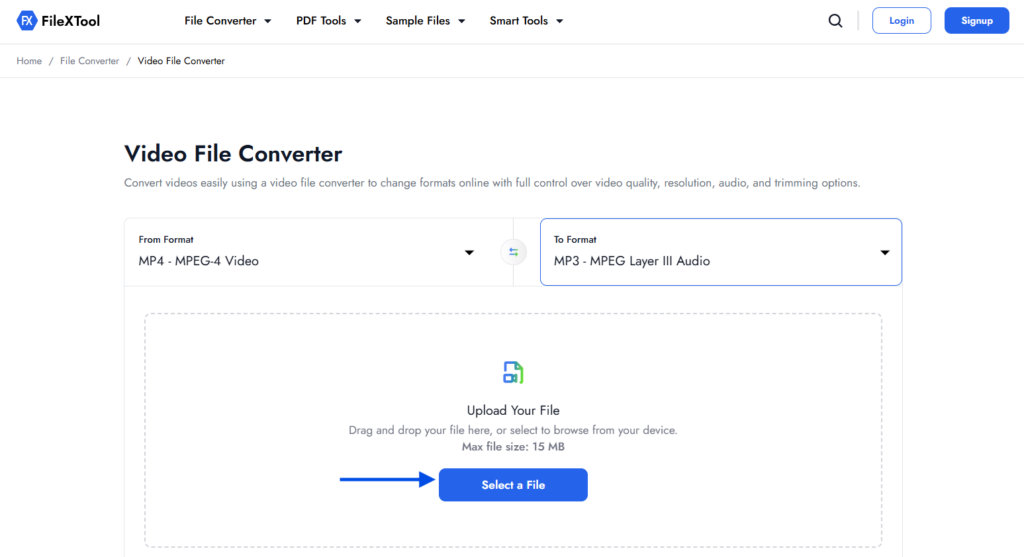
Click on the Select a File option and upload the video you want to convert. This prepares your file for the convert MP4 to MP3 process.
Step 6: Adjust Output Settings (Optional)
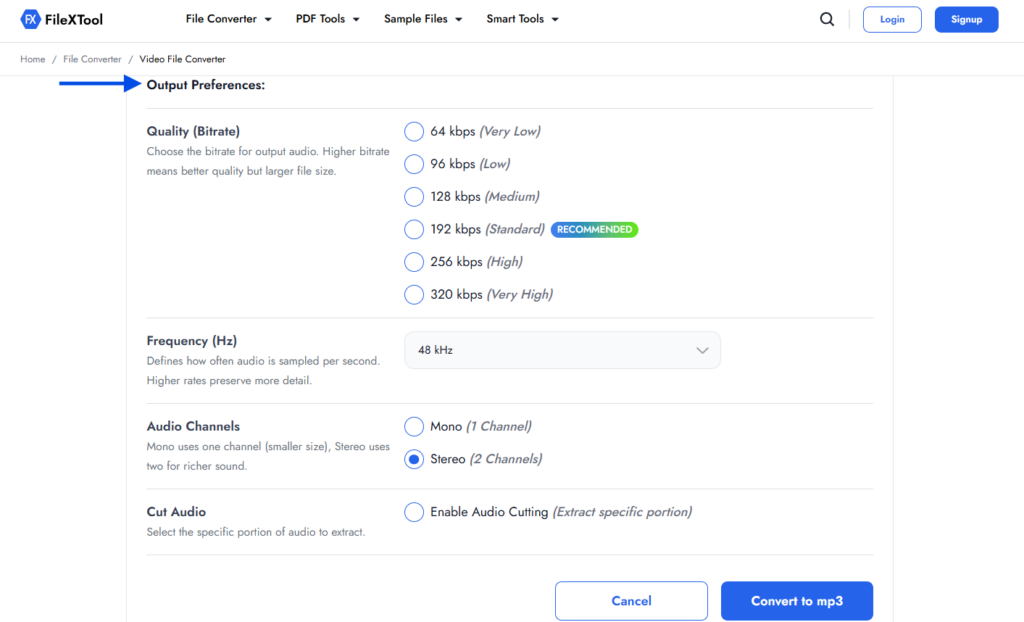
You can customize the output by selecting audio quality, bitrate, frequency, and channels. This helps improve the final audio when you convert video to audio.
Step 7: Click on Convert
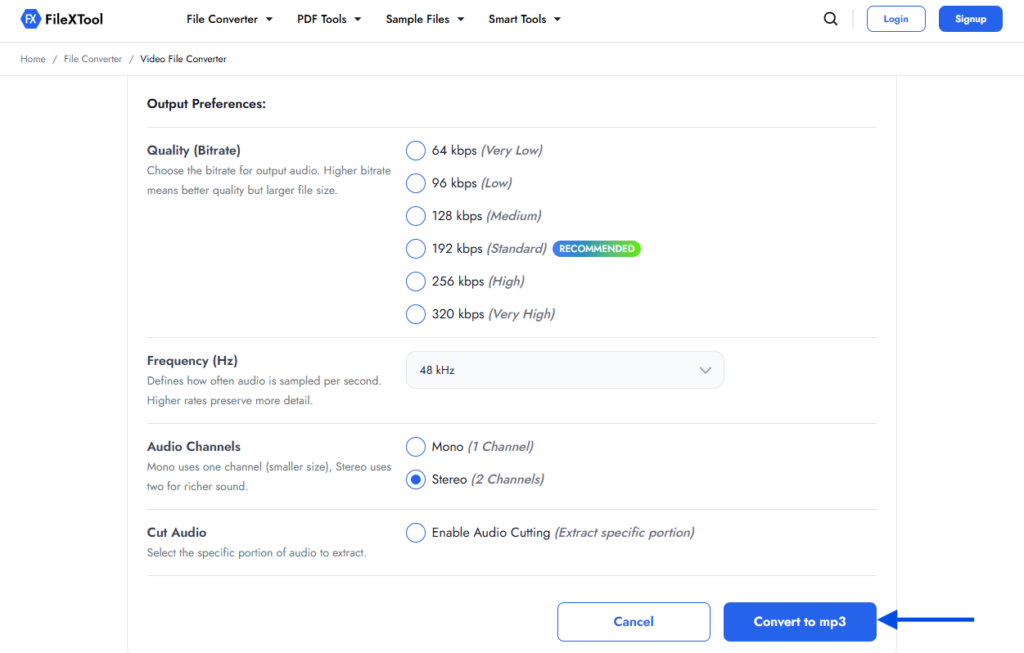
After setting everything, click the Convert button. The tool will start processing your request to convert MP4 to MP3.
Step 8: Download the Converted File
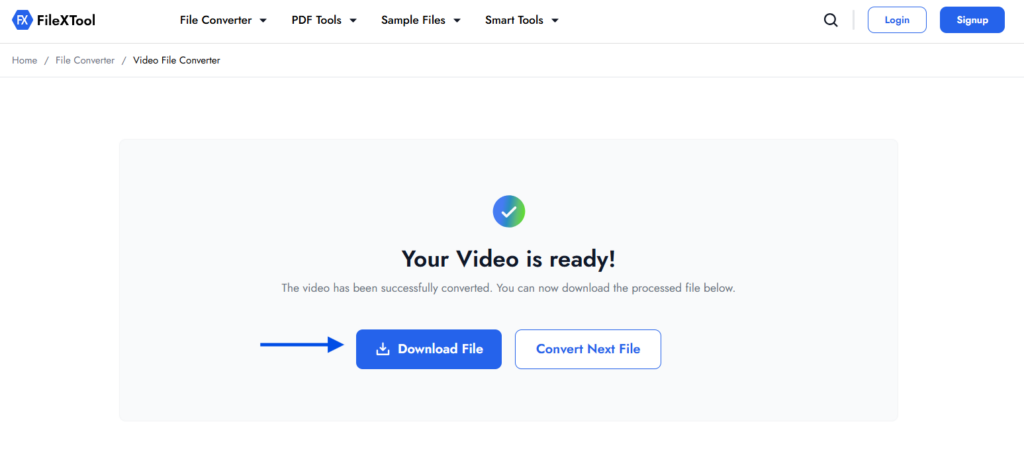
Once the conversion is complete, click Download to save your file. Now you have successfully learned how to convert MP4 to MP3 and extracted audio from your video.
After converting files, you may also want to explore different formats for testing or usage. For example, guides like 10 Best Sample Files of Different Formats can help you understand audio formats and choose the right one for your needs.
Benefits of Converting MP4 to MP3
When you understand how to convert MP4 to MP3, it becomes easier to use video content in a more flexible way. Extracting audio helps save storage space and allows you to access content anytime without needing the full video file.
Save Storage Space
Audio files are much smaller than video files, so when you convert video to audio, it reduces storage usage on your device.
Easy Offline Listening
When you convert MP4 to MP3 online, you can listen to music, podcasts, or lectures anytime without needing an internet connection.
Better Compatibility
MP3 files work on almost all devices, making it easier to convert video to MP3 and play it anywhere.
Faster File Sharing
Audio files are quicker to upload, download, and share compared to large video files.
Reuse Content Easily
Converting videos into audio helps in reusing content for podcasts, background music, or learning purposes.
Key benefits include:
- Smaller file size and easy storage
- Quick access to audio content
- Works on all devices
- Faster sharing and downloads
- Ideal for learning and content reuse
Similarly, managing files efficiently is important in many workflows. For example, tasks like How to Merge PDF Files can help organize documents alongside media conversion processes.
Common Use Cases for Converting MP4 to MP3
Knowing how to convert MP4 to MP3 becomes useful in many real-life situations. Whether for learning, entertainment, or business purposes, extracting audio can make your content more flexible and accessible.
People often convert video to audio when they only need sound without visuals. This makes it easier to manage files and consume content efficiently.
Popular use cases include:
- Listening to lectures and tutorials offline
- Extracting music from videos
- Converting interviews into podcast format
- Saving audio from webinars or meetings
- Creating voice content from video files
In some cases, you may also need to convert other types of files before extracting audio. For example, guides like How to Convert PPT to PDF can help you prepare presentation files for different formats and workflows.
Tips for Getting the Best Audio Quality
When you convert MP4 to MP3, maintaining good audio quality is important for better listening experience. Small adjustments in settings can make a big difference in the final output.
- Choose a higher bitrate for better sound quality
- Avoid unnecessary compression during conversion
- Use clean source video files for better results
- Adjust frequency and channels carefully
- Trim unwanted parts before converting
For better flexibility, you can also use an Audio File Converter when working with different audio formats and settings.
When You Should Convert Video to MP3
There are many situations where knowing how to convert MP4 to MP3 becomes useful. Whether for personal use or professional tasks, extracting audio can make content more accessible and easier to manage.
If you regularly watch videos for learning or entertainment, converting them into audio allows you to listen on the go. This is especially helpful for lectures, interviews, or podcasts where visuals are not necessary.
Content creators and professionals also convert video to MP3 to reuse material across platforms. Audio can be used for podcasts, voice content, or background sound, making it a flexible option for different use cases.
Key Factors to Consider Before Converting MP4 to MP3
Before you convert MP4 to MP3, it’s important to understand a few key factors that can affect the final audio output. Paying attention to these details helps you get better quality and a smoother experience.
When you convert MP4 to MP3 online, small settings like bitrate and file size can impact how the audio sounds after conversion.
Important factors to consider:
- Audio Quality (Bitrate): Higher bitrate gives better sound quality
- File Size: Smaller files are easier to store and share
- Source Quality: Better video input = better audio output
- Audio Trimming: Remove unnecessary parts before converting
- Device Compatibility: Ensure the MP3 works across devices
Final Thoughts
Understanding how to convert MP4 to MP3 makes it easier to extract and use audio from video files in a simple way. Whether for learning, entertainment, or content creation, this process helps save time and storage.
When you convert video to audio, you can access important content anytime without depending on video playback. It also improves compatibility across devices and platforms.
Tools like FileXTool make it simple to convert MP4 to MP3 online without complicated steps, helping you manage your media files efficiently.