


PDF files are widely used for sharing important documents, reports, and personal files. However, when a document contains sensitive information, it becomes important to control who can access it. Learning how to secure a PDF with a password helps protect your files from unauthorized viewing or editing.
Adding password protection is one of the simplest ways to keep your documents safe. When you add password to PDF, only people who know the password can open the file. This makes it easier to share documents while still maintaining privacy and control.
In this guide, you will learn how to secure a PDF with a password using a simple step-by-step method. The process allows you to protect PDF with password quickly and secure PDF file online without complicated software.
How to Secure a PDF with a Password (Step-by-Step Guide)
If you want to understand how to secure a PDF with a password, following a clear step-by-step process makes the task simple. Using a reliable tool, you can add password to PDF and protect PDF with password in just a few clicks.
Step 1: Open the FileXTool Website
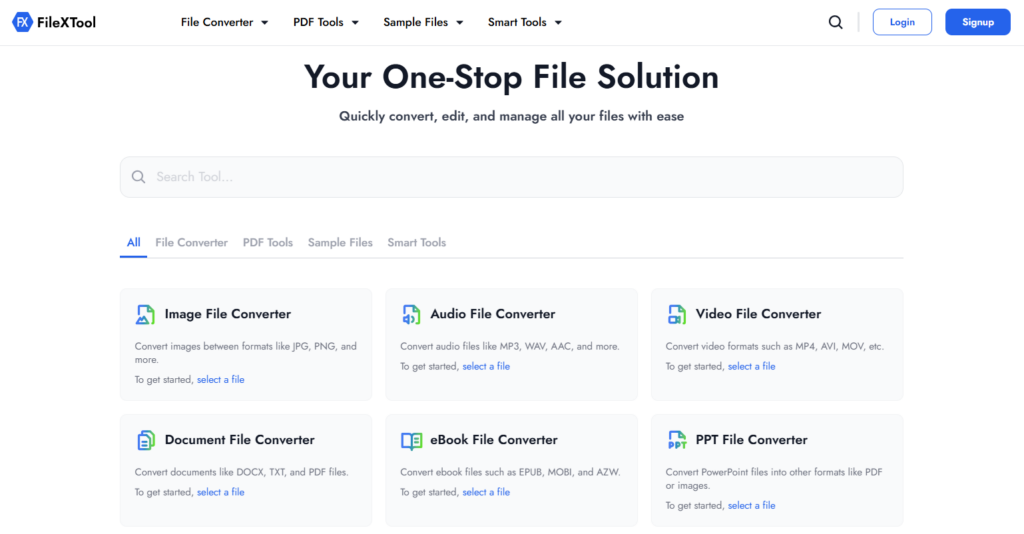
Open the FileXTool website in your browser to begin the process of learning how to secure a PDF with a password using a simple online method.
Step 2: Click on the PDF Tools Option
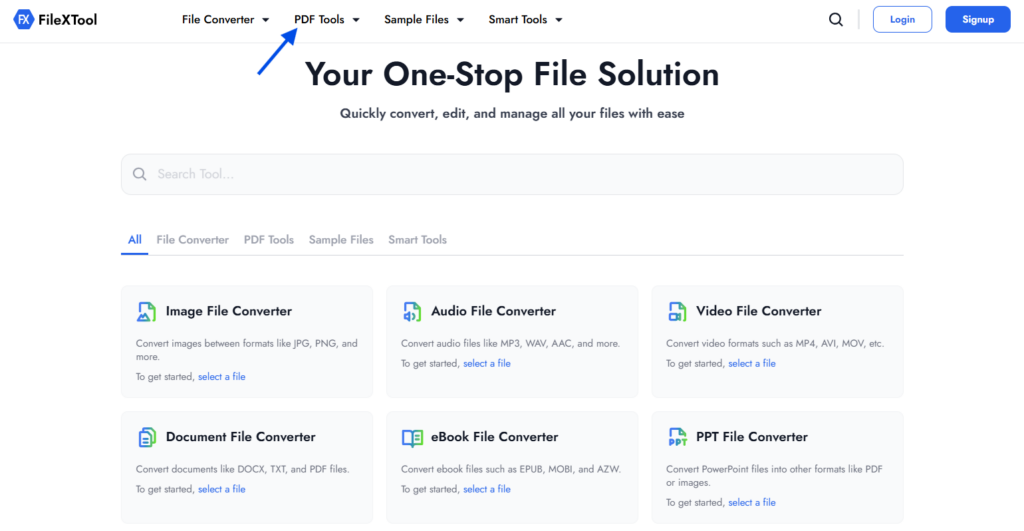
On the homepage, go to the PDF Tools section to access different PDF features. Here you will find options like merge, split, compress, and lock PDF.
Step 3: Click on the Lock PDF Option
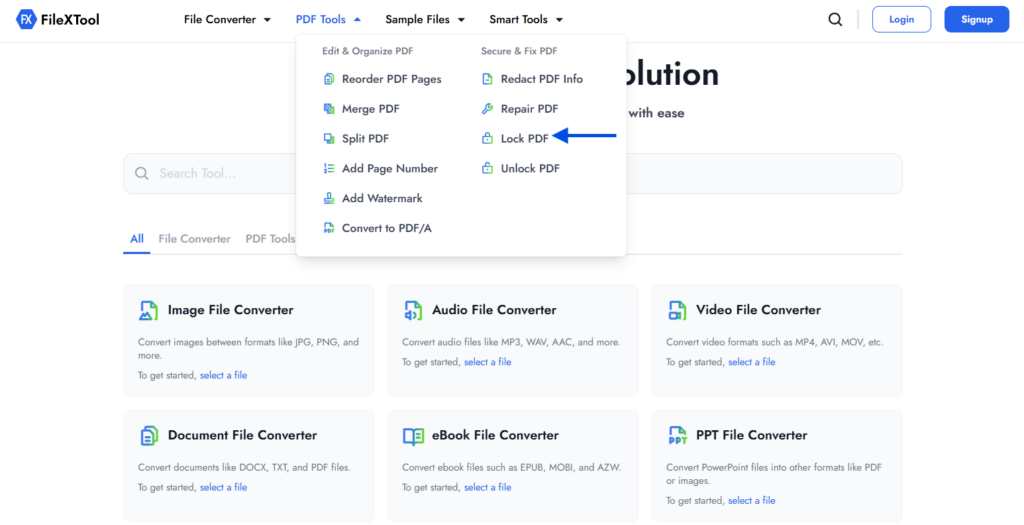
From the PDF Tools section, click on the Lock PDF option. This tool allows you to secure your PDF file and protect it with a password to restrict access.
Step 4: Upload Your PDF File
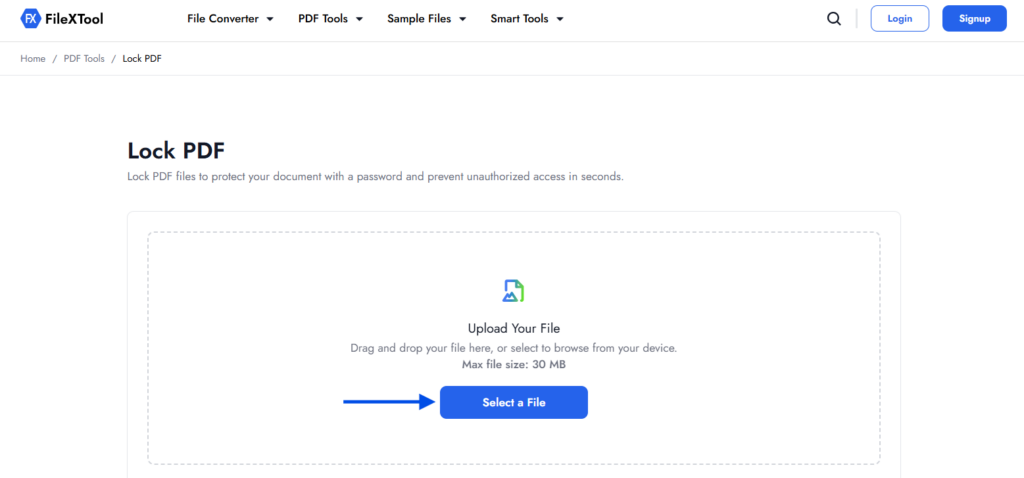
Click on the Select File option and upload the PDF file that you want to protect. This step prepares the document so you can add password to PDF before sharing it.
Step 5: Enter and Confirm Your Password
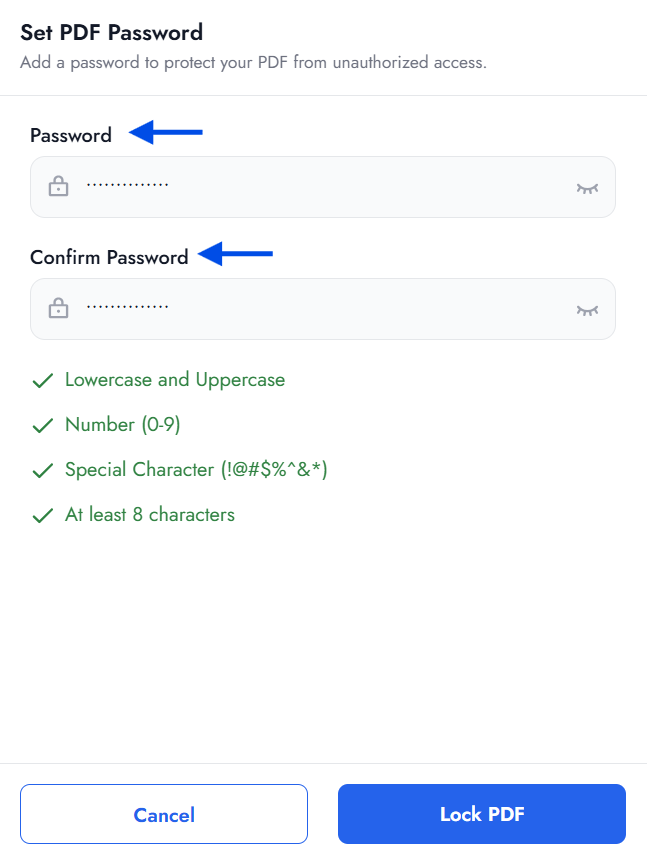
In the Password field, type the password you want to use for the file, then enter the same password again in the Confirm Password field to verify it. This ensures your PDF is securely protected and prevents unauthorized access.
Step 6: Click on Lock PDF
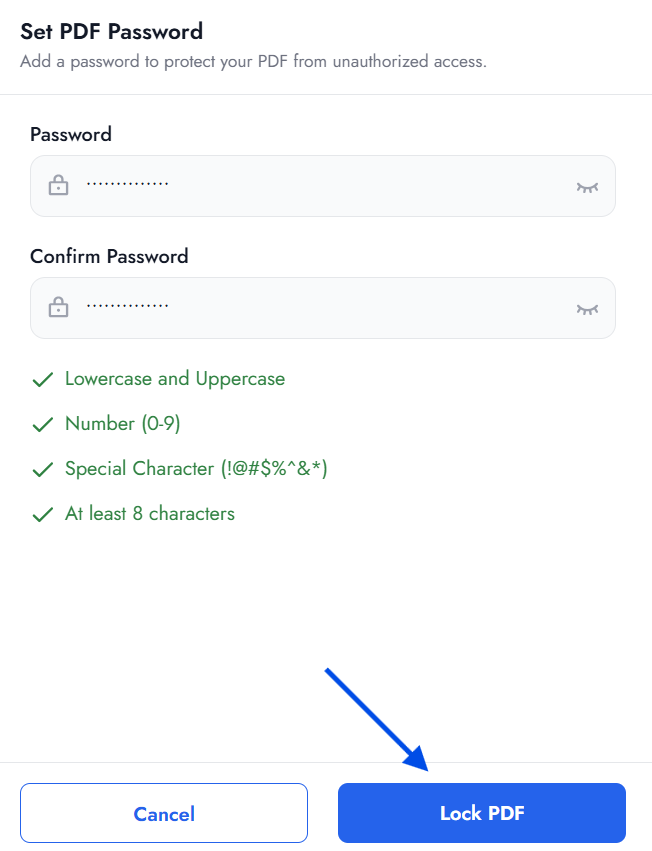
After entering and confirming the password, click the Lock PDF button. The tool will secure PDF file online and apply password protection to the document.
Step 7: Download the Locked PDF
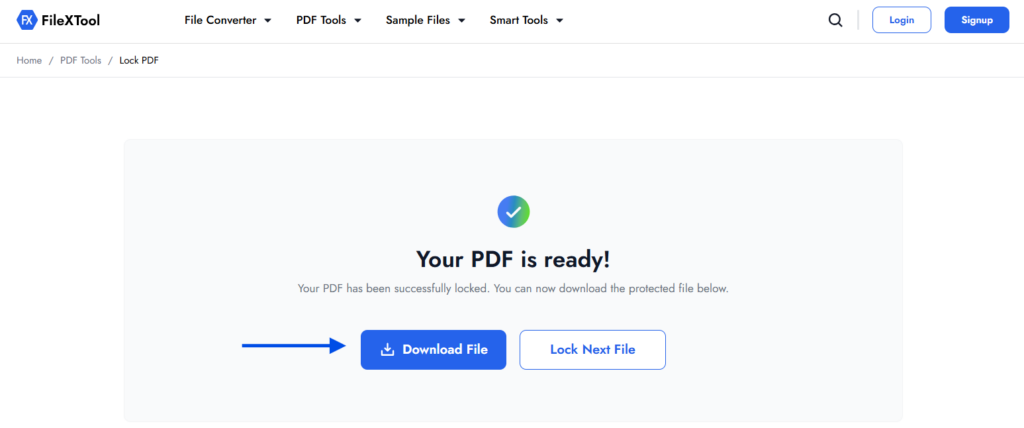
Once the process is finished, click Download to save the password-protected file. Now your document is successfully protected, and only users with the correct password can open it.
Important Benefits of Securing a PDF with a Password
Protecting documents is important when they contain personal, financial, or business information. Knowing how to secure a PDF with a password helps prevent unauthorized users from opening or editing your files.
When you add password to PDF, the file becomes restricted and only people with the correct password can access it. This is especially helpful when sharing confidential documents online.
Common situations where people protect PDF with password include:
Sharing Confidential Documents
Password protection is very useful when sharing contracts, agreements, or internal documents. When you secure PDF file online, only authorized people can open the document.
Protecting Business and Financial Reports
Organizations often share sensitive reports with teams or clients. Using how to secure a PDF with a password helps ensure these files remain protected when sent digitally.
Sending Personal Documents Safely
Personal files such as identity proofs, applications, or important records should always be protected. Choosing to add password to PDF helps make document sharing safer.
Managing and Organizing Protected Files
Sometimes after protecting a document, you may also need to organize its pages for better readability. In such cases, guides like How to Reorder PDF Pages can help arrange the document structure before sharing it securely.
Situations Where Password Protecting a PDF Is Necessary
Understanding how to secure a PDF with a password becomes especially useful when sharing important documents digitally. Password protection ensures that only the intended recipient can access the content inside the file.
Organizations often add password to PDF before sending files through email or online platforms. This approach helps secure PDF file online and reduces the risk of unauthorized access.
Common situations where people protect PDF with password include:
- Sharing confidential contracts or agreements
- Sending financial or legal documents
- Protecting internal company reports
- Securing personal files such as certificates or identification documents
In many document workflows, users may also combine multiple PDFs into a single protected document. In such cases, processes like How to Merge PDF Files can help organize files before applying password protection.
Best Practices to Protect PDF Files with Strong Passwords
When applying how to secure a PDF with a password, choosing the right password strategy is important. A strong password helps ensure that your document remains protected and accessible only to authorized users.
Many people add password to PDF but overlook simple security practices. Following a few best practices can make it much easier to protect PDF with password and keep your files safe.
Create a Strong Password
Always use a combination of uppercase letters, lowercase letters, numbers, and special characters when you secure PDF file online. Strong passwords make it harder for others to guess or access the file.
Avoid Common or Predictable Passwords
Simple passwords such as names, dates, or common words can weaken document security. When applying how to secure a PDF with a password, choose something unique that is not easy to predict.
Share the Password Securely
If you send the PDF to someone, avoid sharing the password in the same message as the document. When you add password to PDF, it is safer to send the password through a different secure channel.
Prepare the Document Before Locking
Before applying password protection, check that the document structure is correct. For example, if the file contains multiple sections, guides like How to Split PDF Pages can help organize the document before securing it.
Common Mistakes to Avoid When Securing a PDF
When applying how to secure a PDF with a password, small mistakes can reduce the effectiveness of your document security. Avoiding these issues helps ensure that your file stays protected and accessible only to the right people.
Common mistakes people make when they protect PDF with password include:
- Using weak passwords – Simple words or numbers make it easier to break the protection.
- Reusing the same password – Using one password for multiple files can reduce security.
- Sharing the password with the file – Sending both together defeats the purpose of protection.
- Forgetting the password – Always store passwords safely when you secure PDF file online.
- Locking the wrong version – Always verify the final document before you add password to PDF.
In some cases, you may also need to prepare the document before securing it. For example, tasks like How to Convert PPT to PDF can help convert files into a secure format before applying password protection.
Final Thoughts
Understanding how to secure a PDF with a password is an important step when sharing sensitive documents online. Password protection helps ensure that only authorized users can open the file and access the information inside it.
When you add password to PDF, it becomes easier to safely share contracts, reports, or personal documents without worrying about unauthorized access. This simple step helps maintain privacy and document integrity.
Tools like FileXTool make it easy to protect PDF with password and secure PDF file online in just a few steps, helping you keep important documents protected while still making them easy to share when needed.