


Images are widely used across websites, documents, and digital platforms, but choosing the right format is important for quality and performance. If you are working with images regularly, knowing How to Convert JPG to PNG File can help you get better results depending on your use case.
JPG files are commonly used because they reduce file size, but they may lose some image quality. On the other hand, PNG files maintain better clarity and also support transparency, making them useful for design, editing, and professional use.
In this guide, you will learn how to convert JPG to PNG step by step using a simple method. This process helps you convert JPG to PNG online easily while keeping your image quality intact.
Converting JPG to PNG (Step-by-Step Guide)
If you want to learn how to convert JPG to PNG, following a simple process makes it quick and easy. With the right method, you can convert JPG to PNG online without affecting the original quality.
This step-by-step guide will help you complete the process smoothly and get high-quality output in just a few clicks.
Step 1: Open the FileXTool Website
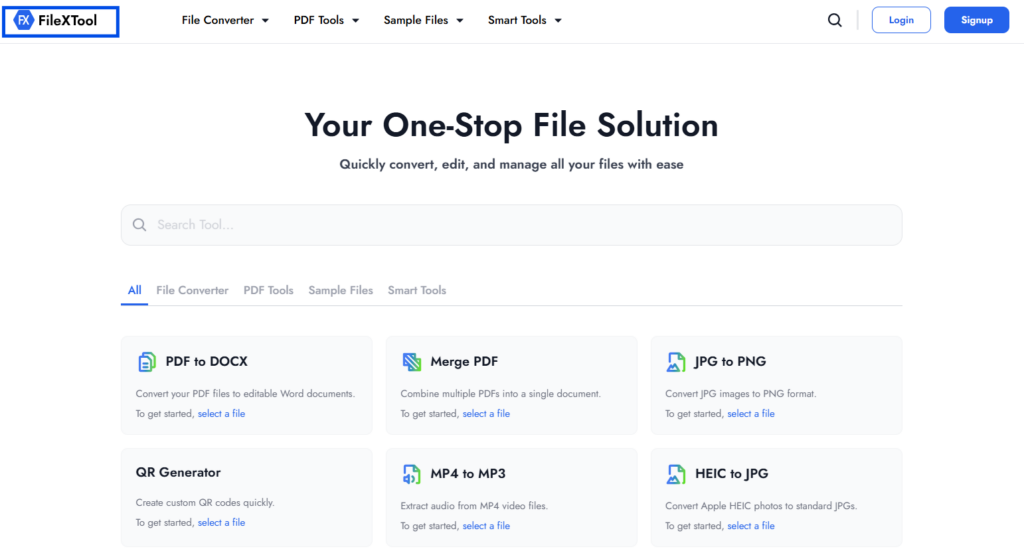
Open the FileXTool website in your browser to begin the process. This is the first step if you want to understand how to convert JPG to PNG without installing any software.
Step 2: Go to the Image File Converter
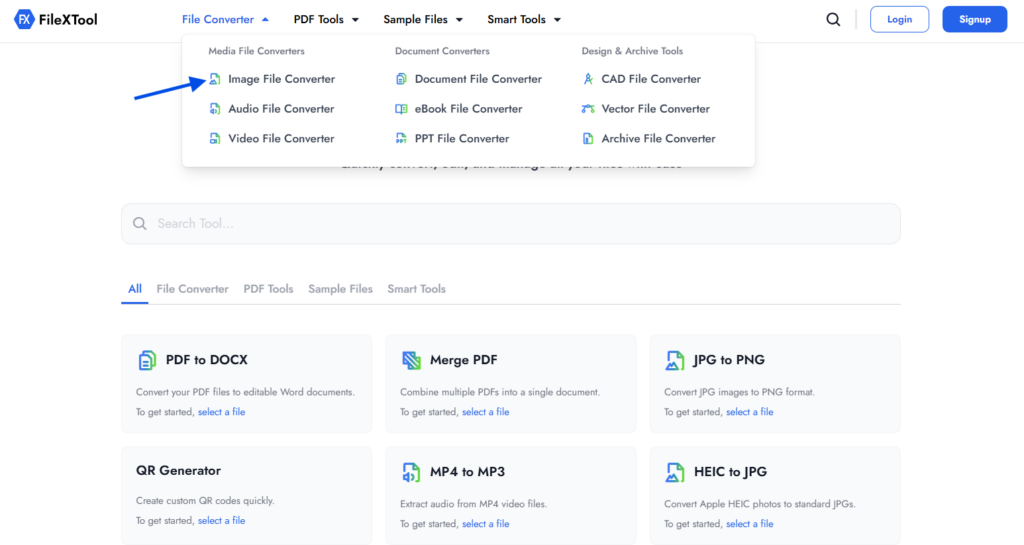
Navigate to the image file converter section on the homepage. This tool helps you easily convert JPG to PNG and supports multiple image formats.
Step 3: Select JPG in From Format and PNG in To Format
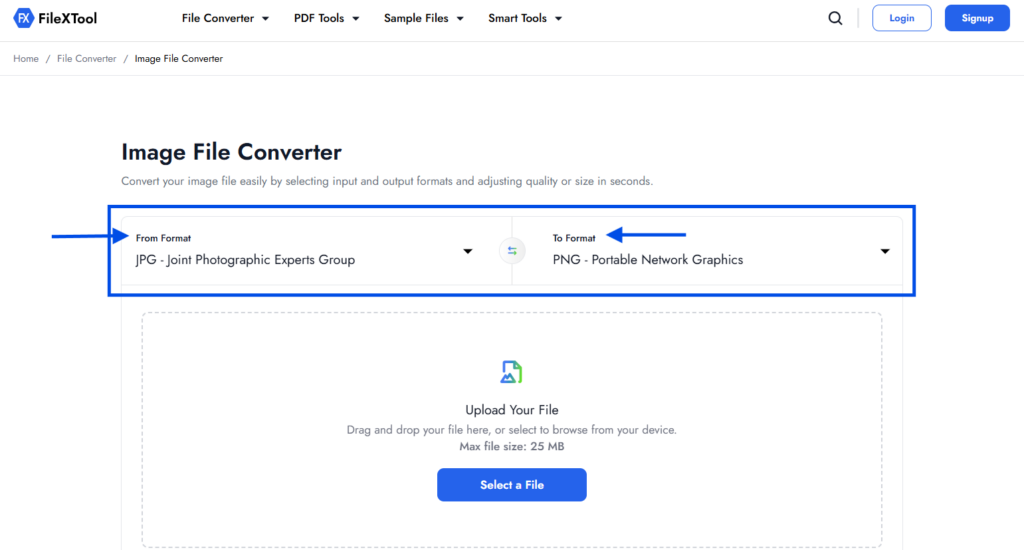
Choose JPG as the input format and PNG as the output format. This step is essential when you want to properly convert JPG to PNG online.
Step 4: Upload Your Image File
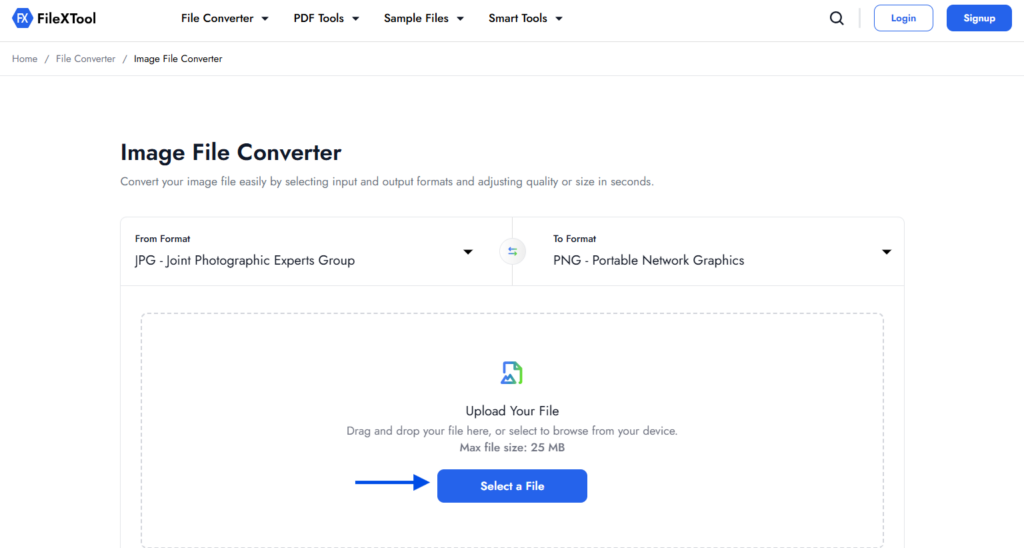
Click on the “Select a File” option and upload your JPG image from your device. Make sure the image is clear to get better output quality.
Step 5: Choose Output Settings
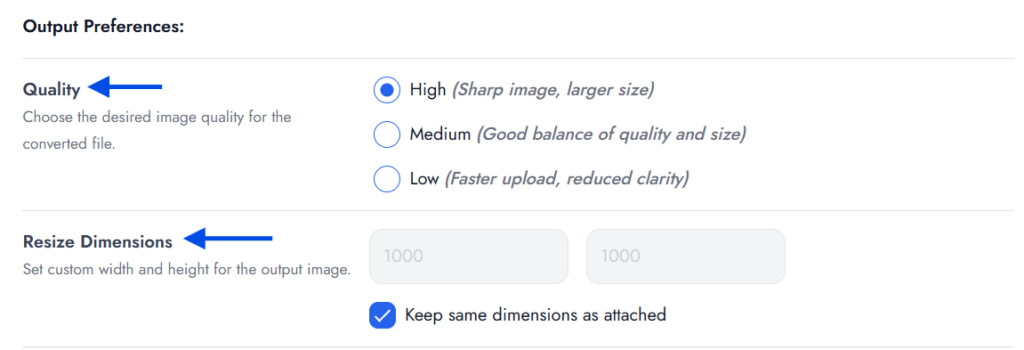
Select the output quality as high, medium, or low based on your needs. You can also resize the image or keep the original size to control the final output.
Step 6: Click on Convert to PNG
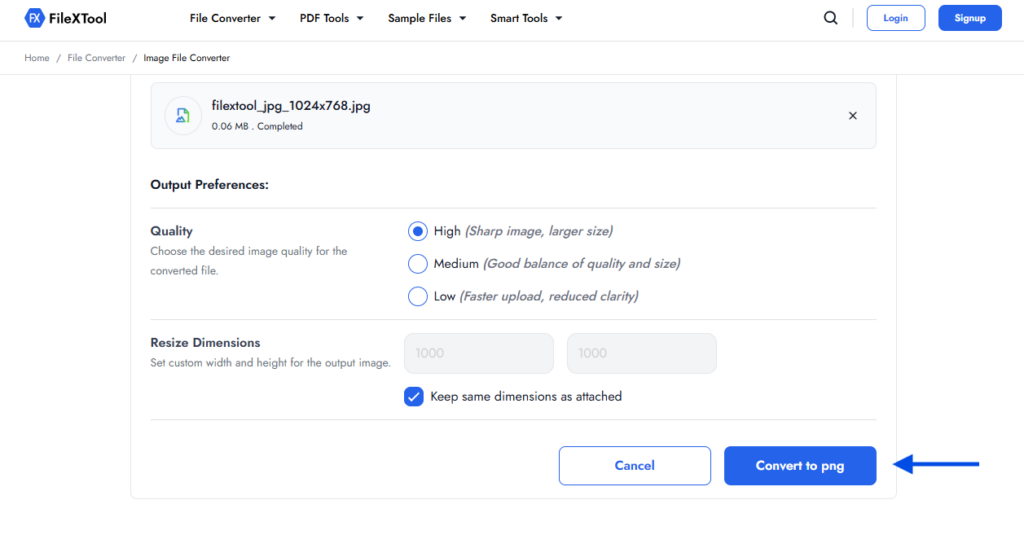
After setting everything, click the convert button to start the process. This is where your file is processed and converted into PNG format.
Step 7: Download the Converted PNG File
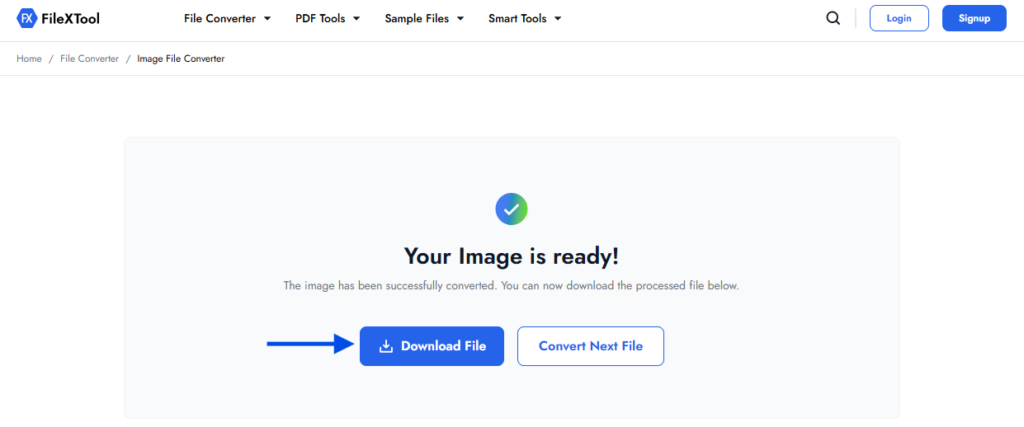
Once the conversion is complete, download your file. Now you have successfully learned how to convert JPG to PNG using a simple and effective method.
What is a JPG File
A JPG file is one of the most commonly used image formats. It is designed to reduce file size by compressing image data, which makes it ideal for sharing and storing images online.
JPG format is widely used for photographs because it balances quality and file size. However, due to compression, some image details may be lost, especially after multiple edits.
Because of its smaller size, JPG is suitable for websites and social media. But when quality and transparency are important, users often look for how to convert JPG to PNG for better results.
What is a PNG File
A PNG file is a high-quality image format that preserves details without heavy compression. It is commonly used for graphics, logos, and images that require clear edges and better visual quality.
One of the main advantages of PNG is its support for transparent backgrounds. This makes it useful for design work, presentations, and professional content.
Compared to JPG, PNG files are larger in size but provide better clarity. This is why many users prefer to convert JPG to PNG when quality and editing flexibility are important.
JPG vs PNG: Key Differences You Should Know
JPG and PNG are two of the most commonly used image formats, but they serve different purposes. Understanding the difference between them helps you choose the right format based on your needs.
JPG files are widely used for everyday images like photos because they offer smaller file sizes. In contrast, PNG files focus on maintaining higher quality and clarity, which makes them suitable for graphics, logos, and design-related work.
To better understand how different formats behave, you can also explore guides like Best Sample Files of Different Formats.
Comparison Between JPG and PNG
| Feature | JPG | PNG |
|---|---|---|
| Compression | Lossy (reduces size but loses some quality) | Lossless (keeps full quality) |
| Image Quality | Good for normal use | High-quality and sharp |
| File Size | Smaller | Larger |
| Transparency | Not supported | Supported |
| Best Use | Photos and web images | Logos, graphics, design work |
Choosing the right format depends on how you plan to use your image. In many cases, converting JPG to PNG helps improve visual quality while keeping important details intact.
Benefits of Converting JPG to PNG Files
Changing the image format can make a noticeable difference in quality and usability. When you convert JPG to PNG, you get more flexibility in how the image can be used, especially for design and professional work.
While JPG works well for basic use, PNG offers advantages that make it more suitable for high-quality output. This is why many users choose to convert JPG to PNG online when clarity and precision matter.
This is similar to how file conversions like How to Convert PDF to Word help improve usability and flexibility across different formats.
Key Benefits to Know
1. Better Image Quality
PNG format preserves more details compared to JPG, making images look sharper and clearer.
2. Supports Transparent Backgrounds
One of the biggest advantages of PNG is transparency, which is useful for logos and design elements.
3. Ideal for Editing and Reuse
PNG files maintain quality even after multiple edits, unlike JPG which loses quality over time.
4. No Compression Loss
PNG uses lossless compression, so important details are not removed during conversion.
5. Professional Output
Images look more refined and clean, especially when used in presentations, websites, or branding.
Common Mistakes to Avoid When Converting JPG to PNG
Even though the process is simple, small mistakes can affect the final output. When you convert JPG to PNG, paying attention to a few details can help you maintain quality and avoid unnecessary issues.
Many users overlook basic settings, which leads to poor results even after conversion. By avoiding the mistakes below, you can ensure a smoother experience and better image output.
Similarly, while using tools like How to Generate Barcode Online, incorrect input or settings can affect the final output.
Mistakes You Should Avoid
1. Choosing Low Output Quality
Selecting low quality can reduce clarity, even in PNG format.
2. Ignoring Image Resolution
Converting a low-resolution JPG will not improve quality, so always use a good source image.
3. Unnecessary Resizing
Changing dimensions without need can distort the image or affect proportions.
4. Overlooking Transparency Needs
If you need transparency, make sure the image is suitable before conversion.
5. Not Reviewing the Final Output
Always check the converted file to ensure it meets your expectations.
Tips to Get the Best Output Quality When Converting Images
Getting high-quality results depends largely on the original image you use. If your JPG file is already clear and detailed, the PNG version will retain that quality more effectively. Starting with a low-quality image can limit the final output, no matter which format you choose.
Another important factor is maintaining the original dimensions. Resizing images unnecessarily can affect clarity and distort proportions. It is always better to keep the size consistent unless you have a specific requirement.
You should also pay attention to how the image will be used after conversion. For example, in different file conversion tasks like How to Convert MP4 to MP3, maintaining original quality plays a key role in getting the best output.
Finally, always review the output after conversion. Checking the final file ensures that the image looks as expected and meets your requirements before using it anywhere.
Final Thoughts
Converting image formats is a simple but important step when working with digital content. Knowing how to convert JPG to PNG helps you improve image quality, maintain clarity, and use your visuals more effectively across different platforms.
Whether you are working on design projects, presentations, or everyday tasks, choosing the right format makes a noticeable difference. Tools like FileXTool make the process quick and convenient, allowing you to convert images without complications while keeping the output clean and professional.
FAQs
1. Can I convert JPG to PNG on my phone?
Yes, you can easily convert JPG to PNG on your phone using online tools like FileXTool. It works directly in your browser, so you don’t need to install any app.
2. How to create a PNG?
To create a PNG, you can either design it using graphic tools or convert an existing image. If you’re looking for how to convert JPG to PNG, tools like FileXTool make the process quick and simple.
3. How to convert PNG to JPG easily?
You can convert PNG to JPG by using FileXTool image converter. Just upload your file, select JPG as the output format, and download the converted image in a few seconds.
4. Is it better to have JPG or PNG?
It depends on your use. JPG is better for smaller file sizes, while PNG is ideal for high-quality images and transparency. Many users choose to convert JPG to PNG when quality is more important.
5. Which is the best JPG to PNG converter online?
The best JPG to PNG converter should be easy to use, fast, and maintain image quality. FileXTool is a good option as it allows you to convert JPG to PNG online with simple steps and reliable output.